
Videos from a photoshoot
Bring your photoshoot to life: create videos from project photos with the same AI model, including UGC Styling Tip videos where the model talks to the camera.
If you made photos in an ApparelAI photoshoot, you can turn them into video inside the same project. The garment, model and setting are already approved before any motion is added, so there's no separate video shoot.
A project is also the only place to make a UGC Styling Tip: an AI UGC video of your clothing, where the model talks to the camera and gives styling advice.
Project video or AI Image to Video?
| Create Video in a project | AI Image to Video | |
|---|---|---|
| Starts from | A photo you made in an ApparelAI photoshoot | Any fashion or product photo you upload |
| Motion | 20 motion templates or your own idea | 20 motion templates or your own idea |
| UGC Styling Tip | Yes | No |
| Length | 3 to 30 seconds | 3 to 30 seconds |
| Extra angles | No | Up to 2 |
| Format | No choice | Portrait 9:16 or Landscape 16:9 |
| Note to adjust a template | No | Anything to change? |
| Sound | Built into UGC Styling Tip, with no sound option for other templates | Ambient audio, if you switch it on |
| Credits per second | 3, or 5 for UGC Styling Tip | 3 |
Need a format, extra angles, a note or ambient sound for a photo from your photoshoot? Download the photo from the project, then upload it to AI Image to Video.
Create a video in a project
Open the photo in the editor
On the web, select Projects in the sidebar, open the project, then select Edit in Studio. The photo opens on the Photo Shoot Result page, which also opens by itself when a photoshoot finishes. See Projects if you need help finding the project.
Pick the photo
Make sure the photo you want is the one showing. To switch to another version, select it under Version History. See Edit and improve results.
Select Create Video
Select Create Video under the photo. While videos are discounted, the button has a 40% OFF badge.
Choose a template
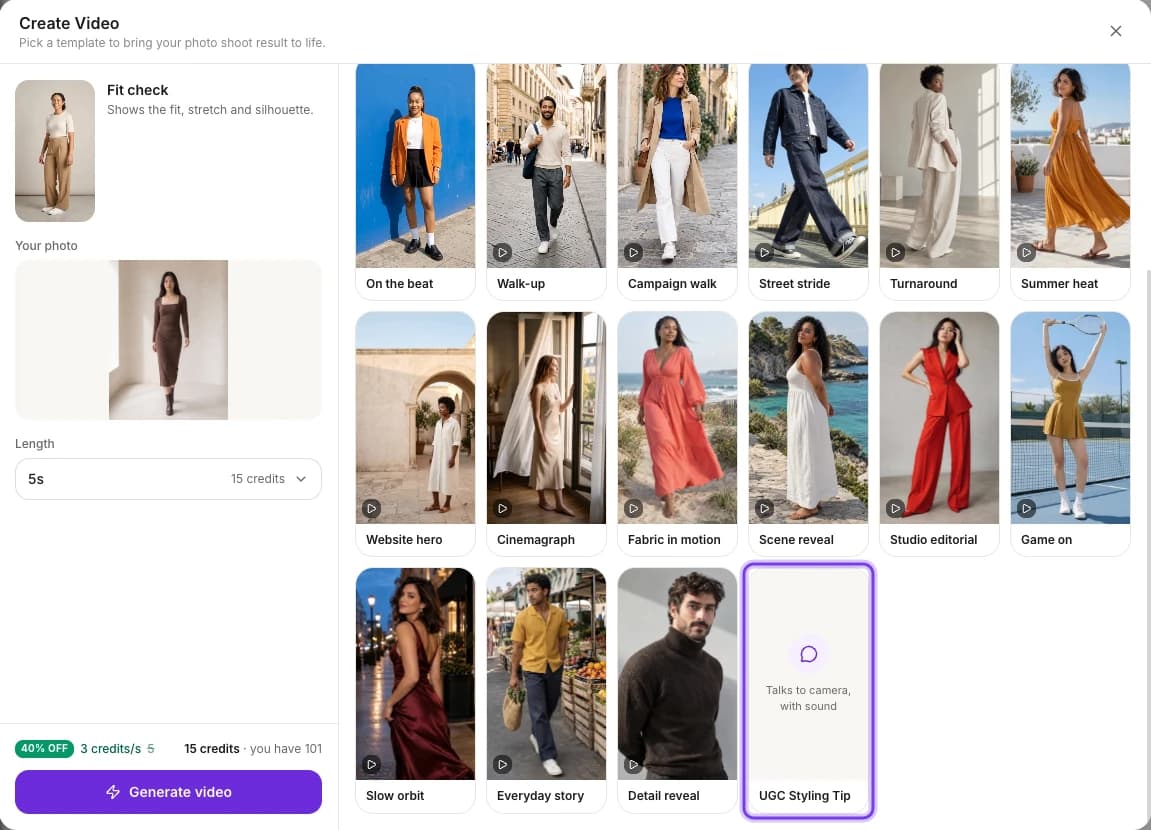
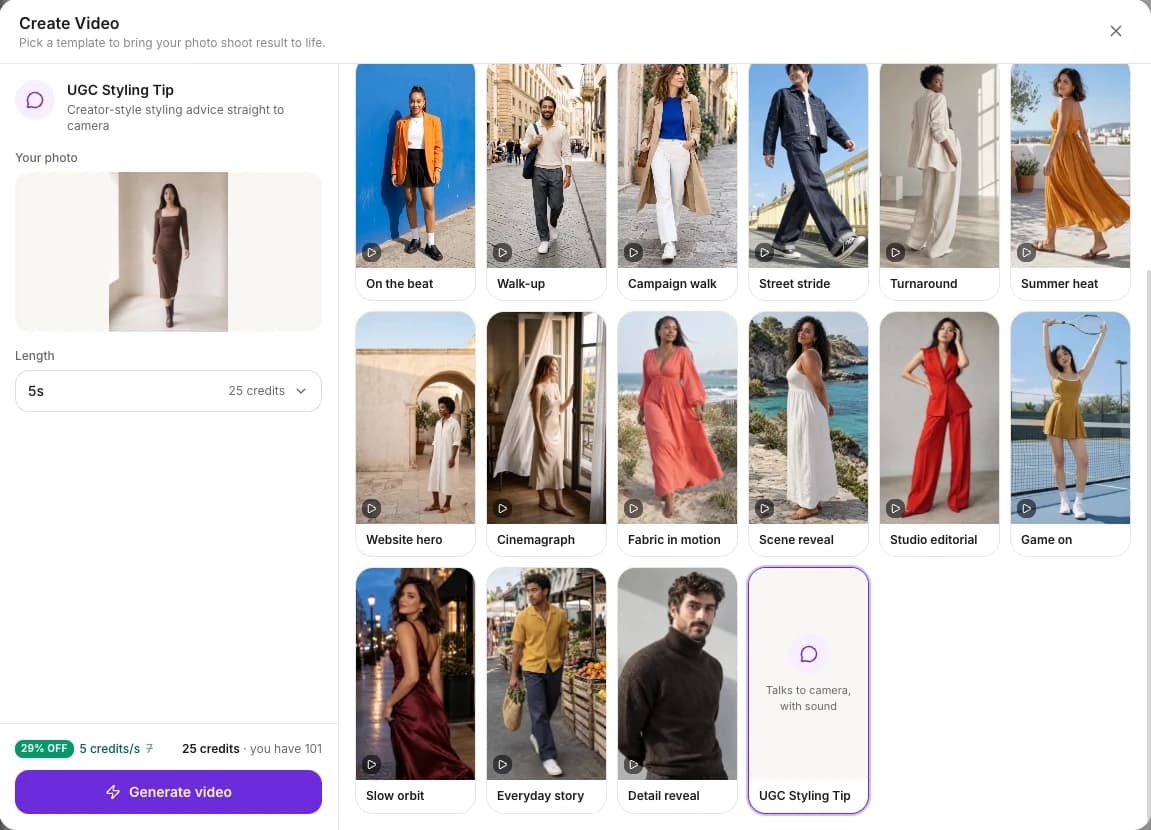
Pick one of the 20 motion templates, or UGC Styling Tip for a creator-style video. Tiles with a play icon show a preview of the motion. To describe the motion yourself, choose Your own idea and type it in Describe your video, like "model slowly raises arms and turns".
Choose the length
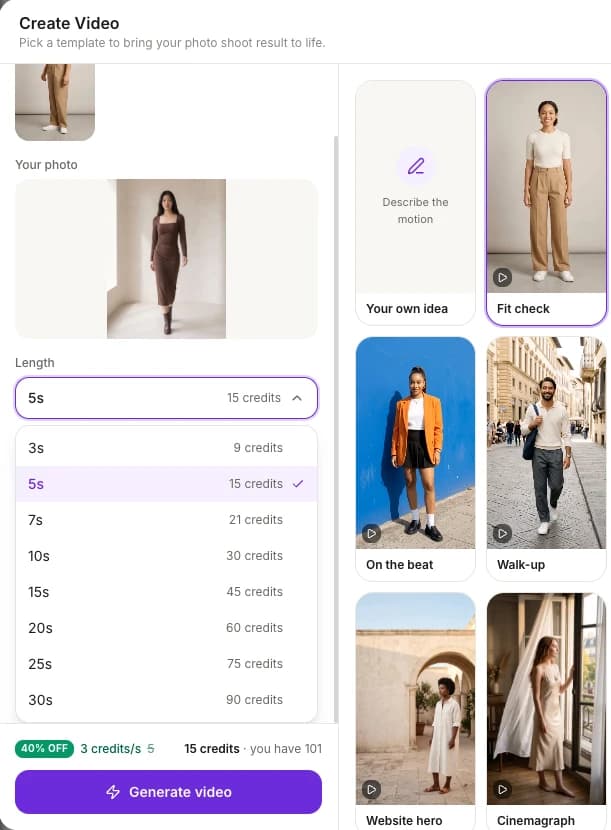
Open Length and pick 3, 5, 7, 10, 15, 20, 25 or 30 seconds. Each length shows its credits, and 5 seconds is selected at first.
Generate the video
Check the total credits next to your balance, then select Generate video. The video is made in the background, so you can leave the page. When it's ready, you'll find it in Your videos.
UGC Styling Tip videos
UGC Styling Tip makes a creator-style video. The model wears your garment, talks to the camera and gives styling advice about the outfit. Use it for Reels, TikTok and Shorts when you want creator-style content without booking a creator.
- It's only available inside a project, for a photo you made in an ApparelAI photoshoot.
- It comes with sound, because the model talks to the camera. There's no separate sound option.
- You don't write a script. Pick UGC Styling Tip and a Length, then generate.
- It costs 5 credits per second instead of 3. See Credits.
- For TikTok and TikTok Shop, the channel guide suggests 10 to 20 seconds.
- The garment and the model come from your photoshoot, and you can make several versions to test what works.
Keep the same model in photos and videos
A project video uses the model from your photoshoot photo. To keep one face across your catalog, create a brand model once, use it in your photoshoots, then turn those photos into video. The same face and look carry across your photos, videos and campaigns.
This also works for ads: make several variations with the same brand model and test which one works best.
To create a brand model, see Choose a model.
Credits
A video costs credits for every second. Both prices are discounted at the moment: the motion templates show 40% OFF (3 credits per second instead of 5), and UGC Styling Tip shows 29% OFF (5 credits per second instead of 7).
| Length | Motion templates | UGC Styling Tip |
|---|---|---|
| 3 seconds | 9 | 15 |
| 5 seconds | 15 | 25 |
| 7 seconds | 21 | 35 |
| 10 seconds | 30 | 50 |
| 15 seconds | 45 | 75 |
| 20 seconds | 60 | 100 |
| 25 seconds | 75 | 125 |
| 30 seconds | 90 | 150 |
Discounts can change, so check the price before you generate. The Create Video window shows the price per second for the template you picked, each length's credits, and the total next to your balance. See How credits work.
Related
Motion templates
All 20 fashion video motion templates, from Fit check to Cinemagraph, plus the format, length and template to use for Amazon, Shopify, Reels, TikTok and ads.
AI tools
Every ApparelAI tool in one place: ghost mannequin, background remover and changer, lookbook generator, sketch to garment, color variation and outfit builder.