
Projects and history
Every photoshoot is saved as a project. Find past shoots, reopen them to make new variants, swap models or backgrounds, and download without re-uploading.
Every photoshoot you create is saved as a project. A project keeps the garment and every photo generated for it. Reopen a project any time to download photos again, try a new model, pose or background, or turn a photo into a video, without uploading the garment again.
Open ProjectsProjects don't expire
Your projects stay in your account, so you can pick up any shoot exactly where you left off.
Reopen a project
Click Projects in the sidebar, then click the project you want. Your six most recent projects are also on Home, under Recent Projects. Click View all there to see every project.
Find a project
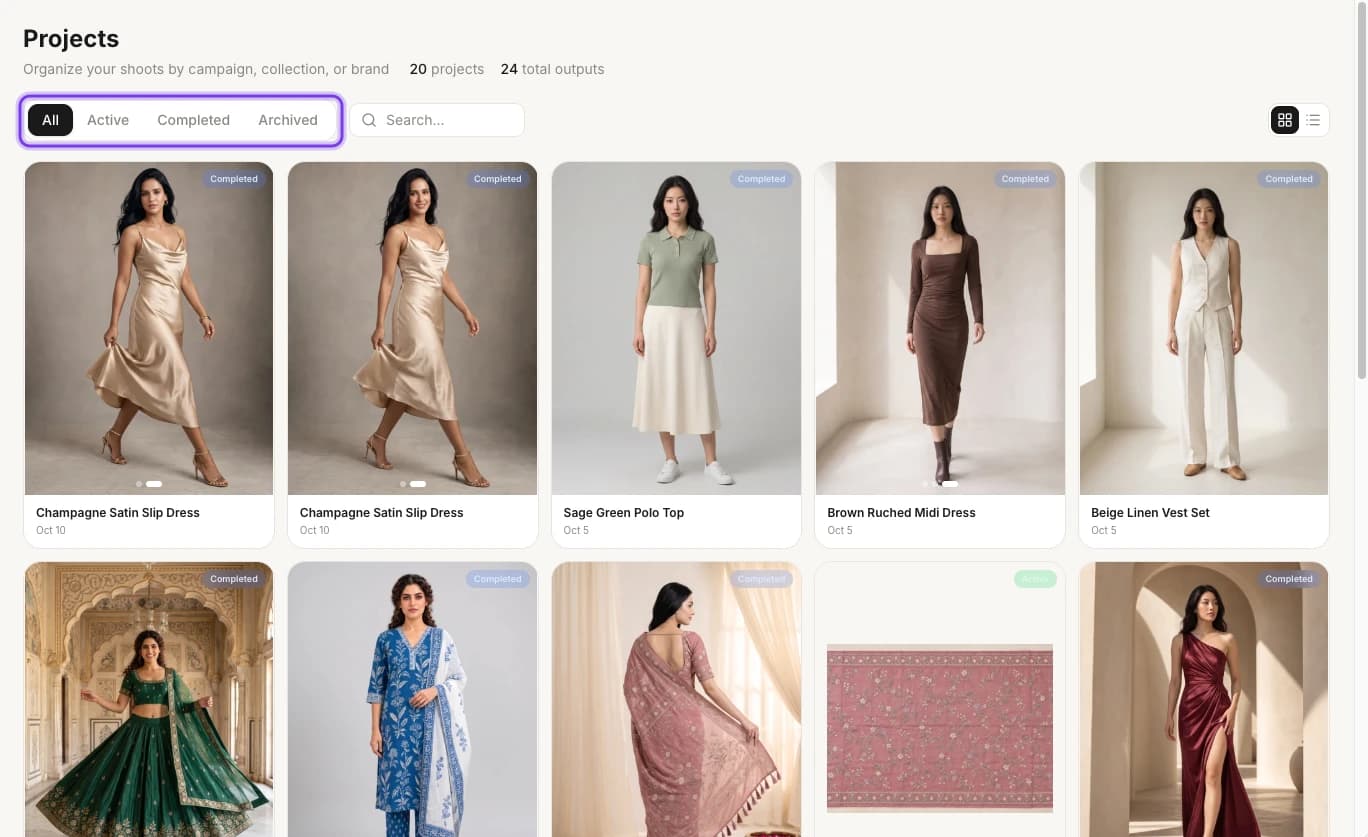
The Projects page lists all your projects. At the top, it shows how many projects you have and how many photos they hold in total.
- Filter: click All, Active, Completed or Archived.
- Search: type in the Search... box to find a project by name.
- Change the view: use the two buttons on the right to switch between a grid and a list.
Each card shows a cover photo, the project's status (Completed or Active), its name and the date. When a project has several photos, dots on the cover let you flip through them. Click a card to open the project.
What's in a project
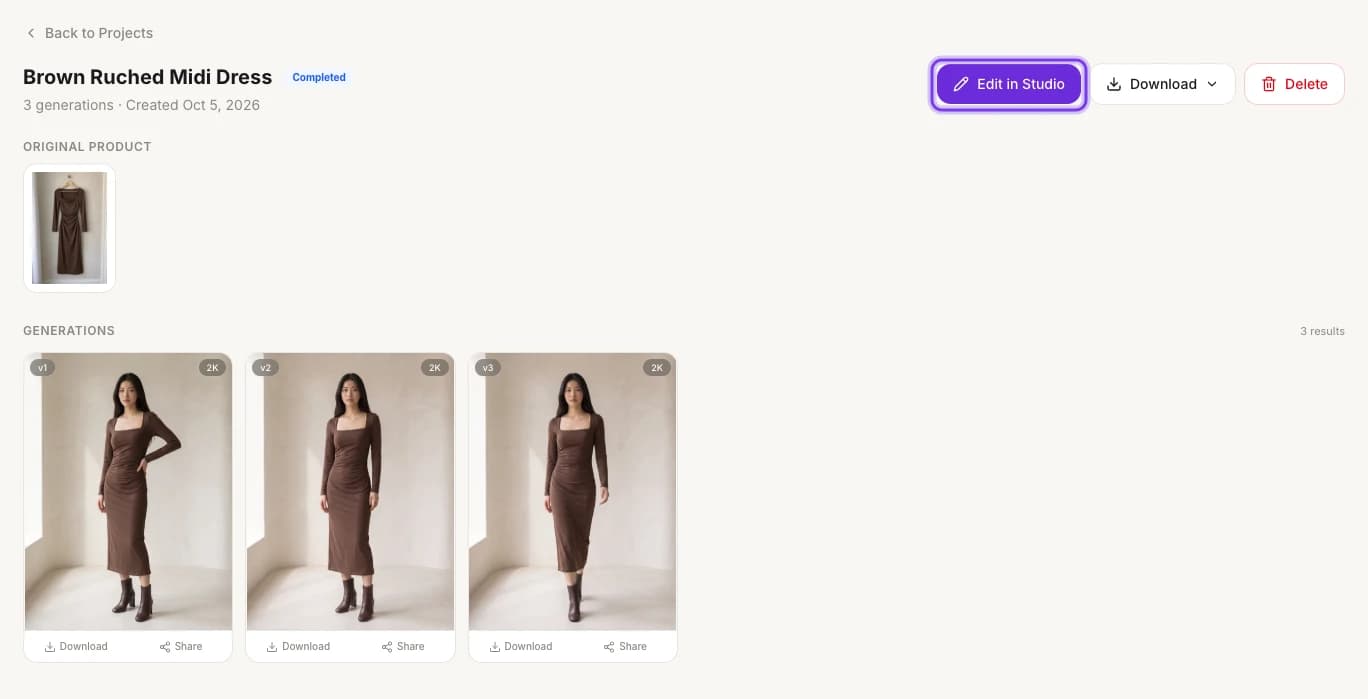
Click a project to open Project Details. At the top are the project's name, its status, the number of photos made in it ("generations") and the date it was created. To go back to the list, click Back to Projects.
| On the page | What it's for |
|---|---|
| Edit in Studio | Opens the Photo Shoot Result page, where you fix, change and add to your photos. See Make more from a project |
| Download | A menu with Download All, Download Selected and MARKETPLACE EXPORT. See Download and export |
| Delete | Deletes the project |
| ORIGINAL PRODUCT | The garment photo the shoot started from |
| GENERATIONS | Every photo made in the project, numbered v1, v2, v3 and so on, with its resolution, such as 2K. Each photo has its own Download and Share buttons |
Version history
Every photo generated in a project stays in its history, including earlier versions. Go back to any of them and download it again without generating it again.
- In Project Details, GENERATIONS shows every version, from v1 up.
- On the Photo Shoot Result page, Version History lists the versions by name, such as "3 - casual walk" or "1 - Original", with each one's resolution and age. Click a version to show it. The version on screen has a check mark.
Make more from a project
Click Edit in Studio to open the Photo Shoot Result page and make more photos of the same garment. You don't upload anything again.
| To do this | Use | Guide |
|---|---|---|
| Fix one detail and keep everything else the same | Fix & Refine | Edit and improve results |
| Re-shoot a photo with a different model, pose, background or output settings | New Variation | Make a new variation |
| Get new poses of the same model in the same scene | Create Poses | Create poses from a photo |
| Get the same photo in a higher resolution | Upscale › Upscale to 4K (3 credits) | Edit and improve results |
| Add your logo or text to a photo | Brand Kit | Add your logo and text |
| Make garment-only shots, such as a new colorway or a ghost mannequin view | PRODUCT SHOTS in the left panel | Product shots |
| Turn a photo into a video, including a UGC Styling Tip video | Create Video | Videos from a photoshoot |
New photos and videos use credits as usual. Opening a project and downloading photos you've already made doesn't generate them again. See How credits work.
Live progress
When several photos are being generated at once, such as in a Bulk Photoshoot, each photo shows up as soon as it's ready. You don't have to wait for the whole batch to finish.
You can also get a notification in your browser or on your phone when your photos are ready.
Where other results are saved
- Videos you make with AI Image to Video are listed under Your videos on the AI Image to Video page. See AI Image to Video.
- AI tool results are saved in Tool history: click History on any AI tool page. See AI tools.
Related
Product library
Keep every garment in your product library: upload photos, import images from a store link, search and rename products, and start a photoshoot in one click.
Download and export
Download AI photoshoot photos at original quality, one by one or all at once, and export marketplace-ready JPGs for Myntra (1080×1440), Amazon and more.