
Make a new variation
Make a new variation of an AI fashion photo: change the model, pose, background or aspect ratio, keep the rest, and see the credit cost before you start.
Use New Variation to re-shoot a photo you've already made and change only what you pick: the model, the pose, the background or the output settings. It's the quickest way to make a new variation of an AI fashion photo, such as the same look on another model, in a new setting or in another shape, without starting a new photoshoot.
New Variation is on the Photo Shoot Result page, the editor where every finished photoshoot opens. These steps are for the web app.
Open ProjectsStart a new variation
Open the photo in the editor
Open the photo on the Photo Shoot Result page. A new photoshoot opens there when it's ready. For an older shoot, click Projects in the sidebar, open the project and click Edit in Studio.
Click New Variation
Under Generate More on the right, click the highlighted New Variation button ("New pose, model, or background").
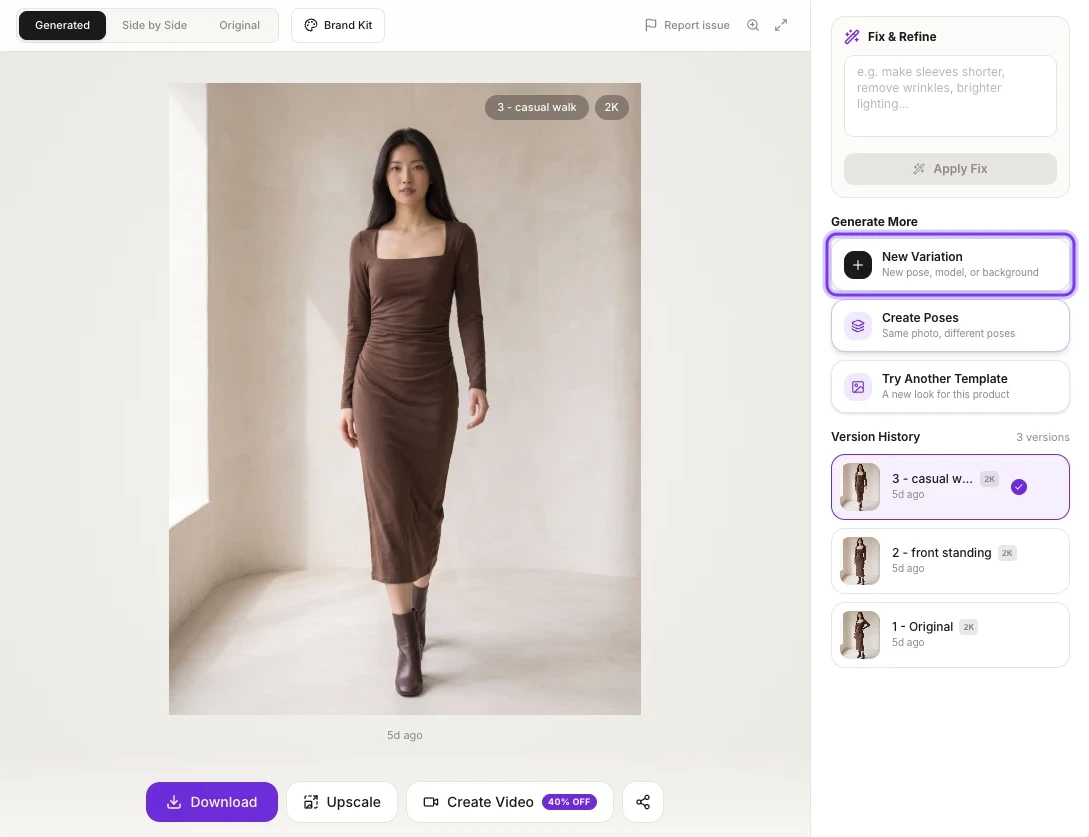
The New Variation panel opens on the Pose step.
Change what you want
The panel has four steps: Model, Pose, Background and Output. Click a step at the top to go straight to it, or click Continue to move to the next one. Change only the steps you want: the photo's current model and background are already selected.
Generate the variation
On the Output step, check the VARIATION SUMMARY and the credit estimate in the footer, then click Generate Variation.
Change the model in a photo
On the Model step ("Select a model for your variation"), click the model who should wear the garment. The list shows your saved models, and the photo's current model has a check mark.
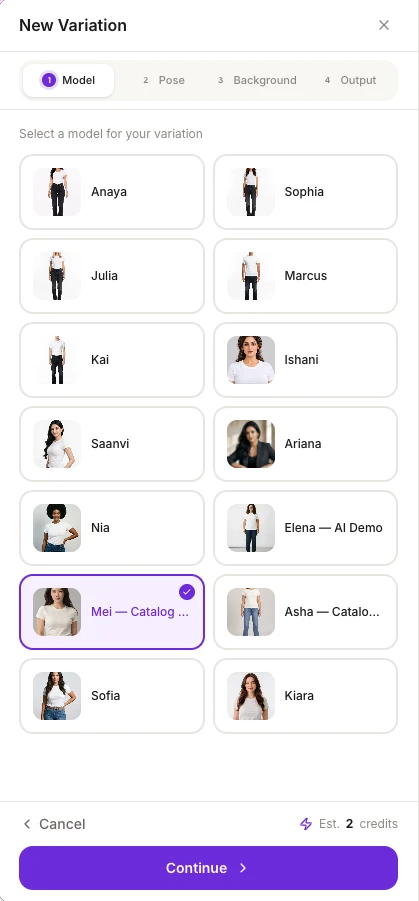
To use a model who isn't in the list, add them on the Models page first, from Our models or with Create AI Model. See Choose a model.
Choose new poses
On the Pose step, you can mix your own poses with preset poses, up to 10 in total. Choose from:
- YOUR POSES: your saved poses. Click Upload your own pose to add a new one.
- The preset categories: Ethnic, Standard, Movement, Casual, Seated, Editorial and Dynamic.
- OR DESCRIBE A CUSTOM POSE: type the pose you want in words.
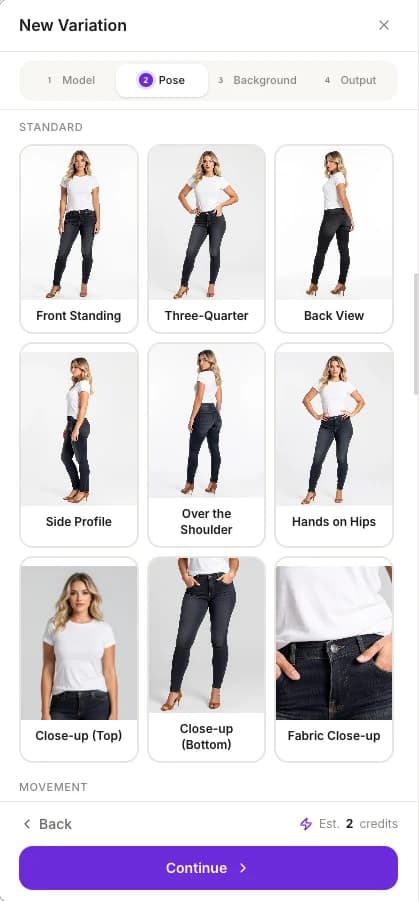
These are the same poses as in a photoshoot. See Choose a pose.
Move the photo to a new background
On the Background step ("Match background to your use case"), the photo's current background is selected. To move the shoot somewhere else, choose:
- YOUR BACKGROUNDS: your saved backgrounds.
- A preset from Ethnic Indoor, Heritage, Studio, Lifestyle, Urban, Outdoor, Luxury or Seasonal.
- OR DESCRIBE A CUSTOM BACKGROUND: describe the setting in words.
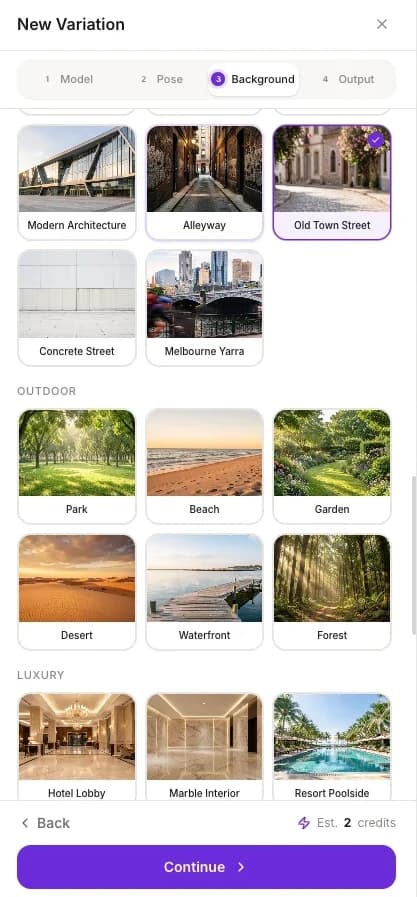
See Choose a background.
Set the aspect ratio, resolution and instructions
On the Output step:
- Aspect Ratio: all 10 ratios are shown, from 1:1 Square to 21:9 Ultra Wide. Use it to get the same photo in another shape, such as 9:16 Story for Reels or 1:1 Square for a catalog grid.
- Resolution: Standard - 1K, HD - 2K or Ultra - 4K. HD - 2K is selected unless you choose another.
- Additional Instructions (optional): describe anything else you want, for example "Add gold jewelry, make the dupatta flow in the wind, use soft warm lighting".
The VARIATION SUMMARY lists the Model, Poses, Background, Aspect Ratio and Resolution you've chosen.
The highlighted Est. line in the footer shows the cost before you click Generate Variation.
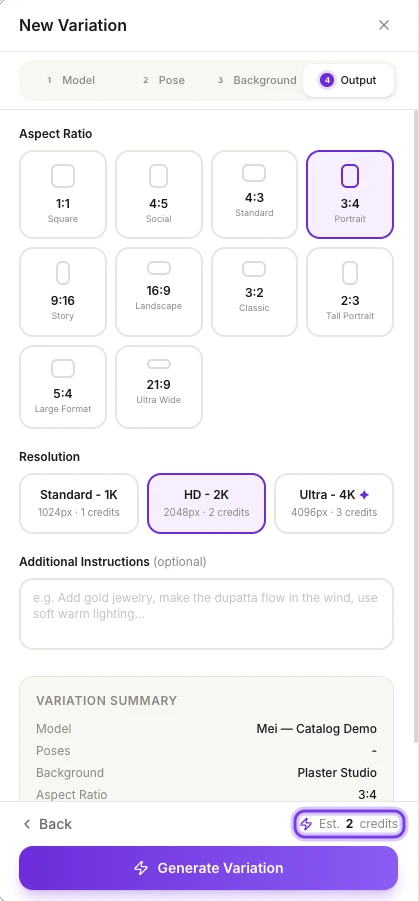
For what each ratio is good for, see Output settings.
Credits
A variation costs the same as a photoshoot photo at the resolution you choose:
| Resolution | Size | Credits per photo |
|---|---|---|
| Standard - 1K | 1024 px | 1 |
| HD - 2K (selected unless you choose another) | 2048 px | 2 |
| Ultra - 4K | 4096 px | 3 |
The footer shows the estimate on every step, for example Est. 2 credits. See How credits work.
New Variation or Create Poses?
| New Variation | Create Poses | |
|---|---|---|
| What changes | Whatever you pick: the model, pose, background or output settings | Only the pose |
| Poses | Up to 10 | Up to 10 |
| Credits | 1, 2 or 3 per photo, by resolution | 1, 2 or 3 per pose, by resolution |
If you only want the same photo in more poses, use Create Poses. It keeps everything else and has fewer steps.
Check every photo before you publish
A new variation is a new image. Compare it with your garment, especially logos, embroidery, borders and stitching, and fix anything that's off before you list it.
Frequently asked questions
Open the photo on the Photo Shoot Result page, click New Variation and pick another model on the Model step. Then go to the Output step and click Generate Variation. The photo's current background is already selected, so you only change what you want.
Yes. On the Background step, pick a preset, one of YOUR BACKGROUNDS, or describe a new setting under OR DESCRIBE A CUSTOM BACKGROUND. The photo's current model stays selected unless you pick another one.
The same as a photoshoot photo: 1 credit at Standard - 1K, 2 at HD - 2K and 3 at Ultra - 4K. HD - 2K is selected unless you choose another, and the footer shows Est. N credits on every step.
New Variation can change the model, pose, background or output settings, while Create Poses changes only the pose and has fewer steps. If you only want the same photo in more poses, use Create Poses.
Yes, once you've added them. On the Models page, add a model from Our models or create one with Create AI Model, and it appears on the Model step of New Variation. See Choose a model.
Related
Edit and improve results
Edit AI fashion photos after a shoot: fix details in words, upscale to 4K, switch between versions, make new variations and poses, or add your logo.
Create poses from a photo
Change the pose of a photo without a reshoot: pick up to 10 preset or custom poses, keep the same model, garment and background, and see the cost first.