
Choose a background
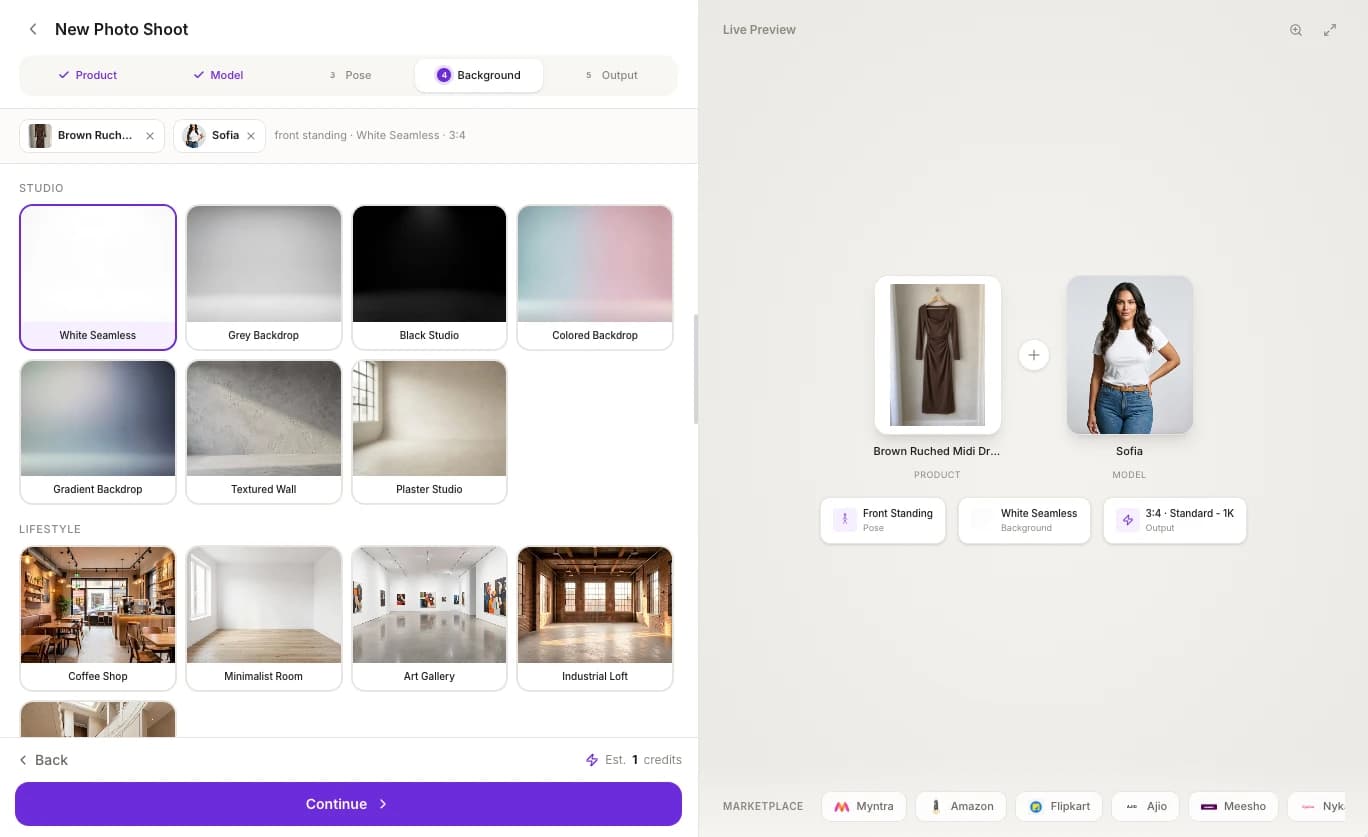
Pick a background for your AI photoshoot: studio white, Indian heritage and ethnic interiors, lifestyle, urban and luxury scenes, or upload your own background.
The background is where your clothing photoshoot takes place, from a plain studio to a city street or a haveli courtyard. In the Background step of Create Photo Shoot, you pick one background: a preset, one of your own backgrounds, or a background you describe in words.
The app's tip: a white studio for e-commerce, Lifestyle for social media and Urban for streetwear.
To see which of these options your plan includes, check Compare plans.
Preset backgrounds: white studio, ethnic wear and more
Click a preset to select it.
| Category | Backgrounds |
|---|---|
| Ethnic Indoor | Haveli Courtyard, Palace Interior, Floral Mandap, Temple Corridor, Sheer Curtain Studio |
| Heritage | Rajasthani Fort, Jaipur Street, Varanasi Ghat, Kerala Backwater |
| Studio | White Seamless, Grey Backdrop, Black Studio, Colored Backdrop, Gradient Backdrop, Textured Wall, Plaster Studio |
| Lifestyle | Coffee Shop, Minimalist Room, Art Gallery, Industrial Loft, Staircase |
| Urban | City Street, Rooftop, City Night, Modern Architecture, Alleyway, Old Town Street, Concrete Street, Melbourne Yarra |
| Outdoor | Park, Beach, Garden, Desert, Waterfront, Forest |
| Luxury | Hotel Lobby, Marble Interior, Resort Poolside, Santorini Caldera, Maldives Overwater, Modern Luxury Lounge, Alpine Terrace, Dubai Skyline Balcony |
| Seasonal | Autumn Street, Winter Snow, Spring Bloom, Summer Golden Hour, Holiday |
For users in India, the Ethnic Indoor and Heritage backgrounds are listed first, and Haveli Courtyard is selected unless you choose something else. Otherwise, a studio background such as White Seamless is the starting choice.
Which background to pick
| You're shooting | Try |
|---|---|
| Photos for marketplace listings | A plain Studio background, such as White Seamless or Grey Backdrop |
| Photos for social media | A Lifestyle background |
| Streetwear | An Urban background |
| Bridal lehengas | A Heritage background, or Floral Mandap |
| Sherwanis | A Heritage background |
| Banarasi sarees | An Ethnic Indoor background, such as Haveli Courtyard |
| Cotton sarees and everyday kurtas | A plain Studio background |
Recommended backgrounds
If you pick a marketplace in the MARKETPLACE bar, the backgrounds that suit it get a green border, the marketplace's logo and a Recommended label. For Myntra, for example, they're White Seamless, Sheer Curtain Studio and Grey Backdrop. See Use marketplace presets.
Use your own background
Upload a photo of a place, and the shoot happens in that setting. Your backgrounds are saved under YOUR BACKGROUNDS, at the top of the Background step, so you can use them again in any shoot.
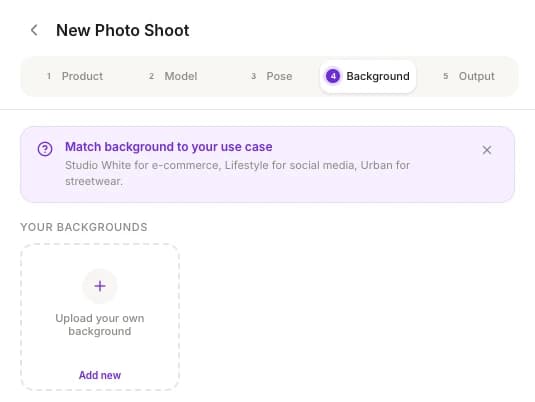
Open the upload box
In the Background step, click Upload your own background under YOUR BACKGROUNDS.
Name the background
Enter a Name, such as "My studio" (up to 80 characters).
Choose the reference photo
Click Choose image and pick a JPG, PNG, WebP or HEIC photo.
Save it
Click Save. The background appears under YOUR BACKGROUNDS, ready to select.
You can also see your saved backgrounds in Settings › Custom Backgrounds. Using the same background across a collection helps it look like one collection.
Only upload photos you have the right to use.
Describe a background in words
Under OR DESCRIBE A CUSTOM BACKGROUND, type the setting and lighting you want, for example "Warm golden-hour lighting in a rooftop garden with city skyline in the background". The quick-add chips (+ beach sunset, + city rooftop, + brick wall, + flower garden and + marble floor) add those words to your description.
Change the background of a finished photo
To put an existing photo in a new setting, use the Background Changer in AI Tools. Or run the photoshoot again with a different background.
Related
Choose a pose
Choose from 40+ preset poses for clothing photoshoots, including ethnic, editorial and seated poses, upload a pose reference, or describe a pose in words.
Output settings
Choose the right aspect ratio (1:1, 3:4, 4:5, 9:16 and more) and resolution (1K, 2K or 4K) for listings, Instagram and ads, plus garment styling options.