
Reuse settings with shoot templates
Save your model, pose, background and output choices as a shoot template, then apply it in one click to keep every product photo in your catalog consistent.
A shoot template is a set of photoshoot settings that you save and reuse. Apply it, and the model, pose, background and output settings are filled in for you. It's the quickest way to keep every photo in a collection consistent.
Open Shoot TemplatesNot the same as photoshoot templates
Shoot templates are your own saved settings. The looks in the Templates gallery are ready-made by ApparelAI. See Photoshoot templates.
What a shoot template saves
| Setting | What you can choose |
|---|---|
| MODEL | Any, or one of your models |
| POSE | Any, or a preset pose, including the saree, dupatta and shirt poses |
| BACKGROUND | Any, or a preset background |
| ASPECT RATIO | Any, or one of 10 ratios: 1:1, 4:5, 4:3, 3:4, 9:16, 16:9, 3:2, 2:3, 5:4 or 21:9 |
| RESOLUTION | Standard - 1K, HD - 2K or Ultra - 4K |
| EXTRA INSTRUCTIONS | Optional notes applied to every shoot, such as "soft warm lighting" |
| SAREE STYLING (SAREE SHOOTS ONLY) | Jewellery, Model's own jewellery and Styled hair |
Choose Any to leave a setting out of the template, so you can pick it in each shoot. The product isn't part of a template, so you can apply the same template to any garment.
Create a shoot template
Open Shoot Templates
Click Settings in the sidebar, then Shoot Templates under it. You can also click the Shoot Templates card on the Settings page.
Start a new template
Click + New template. If you don't have any templates yet, you can also click + Create template. The New Shoot Template window opens.
Name it
Under TEMPLATE NAME, type a name you'll recognize, such as "Clean White Catalog".
Choose the model, pose and background
In the MODEL, POSE and BACKGROUND rows, pick one of each, or leave Any.
Choose the output and extras
Pick an ASPECT RATIO (or Any) and a RESOLUTION. Add EXTRA INSTRUCTIONS if you want the same notes on every shoot. For sarees, tick the SAREE STYLING options you want.
Save it
To make it your default template, tick Default for new shoots. Then click Create Template.
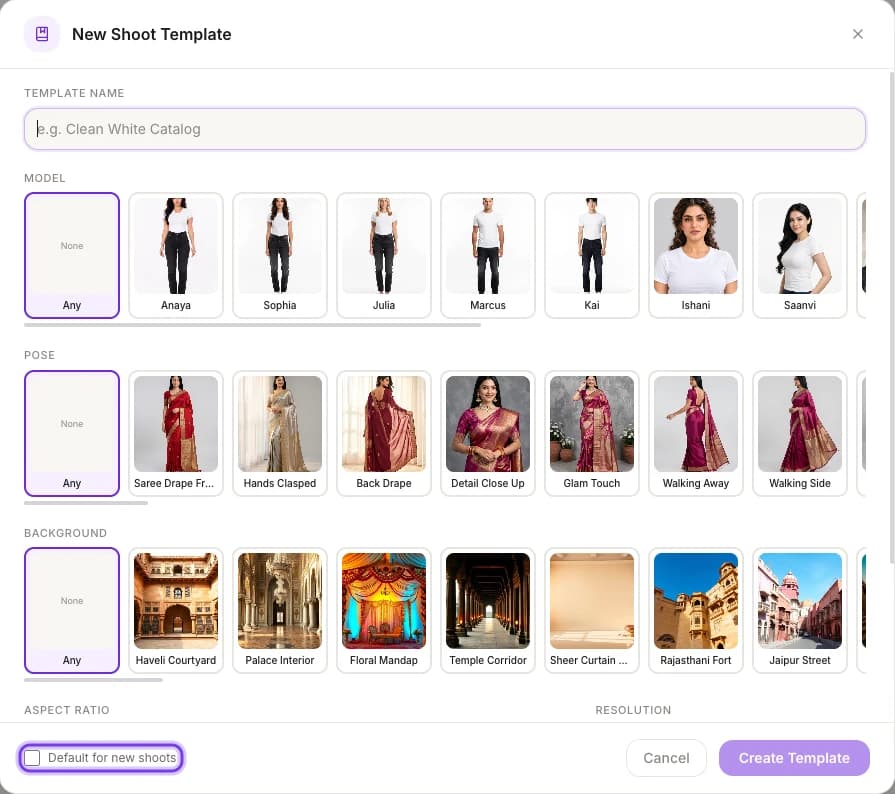
The template window shows no credit cost. You spend credits only when you generate: 1, 2 or 3 credits per photo at 1K, 2K or 4K. See How credits work.
Your templates are listed on the Shoot Templates page. There you can rename a template, change it and click Save Changes, or mark a different one as your default.
Use a template in a photoshoot
When you have saved templates, the Product step of Create Photo Shoot shows a Shoot templates row. Each card shows the template's model, background and pose, its name and its output settings, such as "3:4 · HD - 2K". Your default template has a Default badge, and the template you've applied shows Applied.
Start a photoshoot
Click New Photo Shoot in the sidebar.
Apply a template
In the Shoot templates row, click the template you want. Its settings are filled in.
Finish the remaining steps
Choose your product if you haven't yet. When the product and model are both set, the page takes you straight to the Output step.
Generate
Check the Shoot Summary, then click Generate Photo Shoot.
You can still change any setting before you generate. To hide the row, click Dismiss.
Keep a catalog consistent in a bulk photoshoot
In the Photoshoot step of a bulk photoshoot, click Load a template and choose your template under Saved shoot template. It fills in the model, poses, background, aspect ratio, resolution, instructions and saree styling for the whole batch. You can still customise single products afterwards. See Bulk photoshoot.
Shoot templates or photoshoot templates?
| Shoot templates | Photoshoot templates | |
|---|---|---|
| Made by | You | ApparelAI |
| What it holds | Your model, pose, background, output settings, instructions and saree styling | A ready-made look: setting, pose, lighting and composition |
| Where to find it | Settings › Shoot Templates, the Shoot templates row in a photoshoot, and Saved shoot template in a bulk photoshoot | Templates in the sidebar, and First photo look in a bulk photoshoot |
Related
Photoshoot templates
Browse 100+ ready-made fashion photoshoot templates, filter by clothing type, preview the lighting and composition, and recreate the look with your own product.
Edit and improve results
Edit AI fashion photos after a shoot: fix details in words, upscale to 4K, switch between versions, make new variations and poses, or add your logo.