
Output settings
Choose the right aspect ratio (1:1, 3:4, 4:5, 9:16 and more) and resolution (1K, 2K or 4K) for listings, Instagram and ads, plus garment styling options.
Output is the last step of Create Photo Shoot. Here you choose the aspect ratio and resolution of your product photo, add any styling options and instructions, and check your choices before you click Generate Photo Shoot.
Aspect ratio: 3:4, 1:1 and more
Under Aspect Ratio, four ratios are shown. Click + 6 more ratios to see the rest, and Show less to hide them again.
The highlighted Est. line in the footer shows what the shoot will cost.
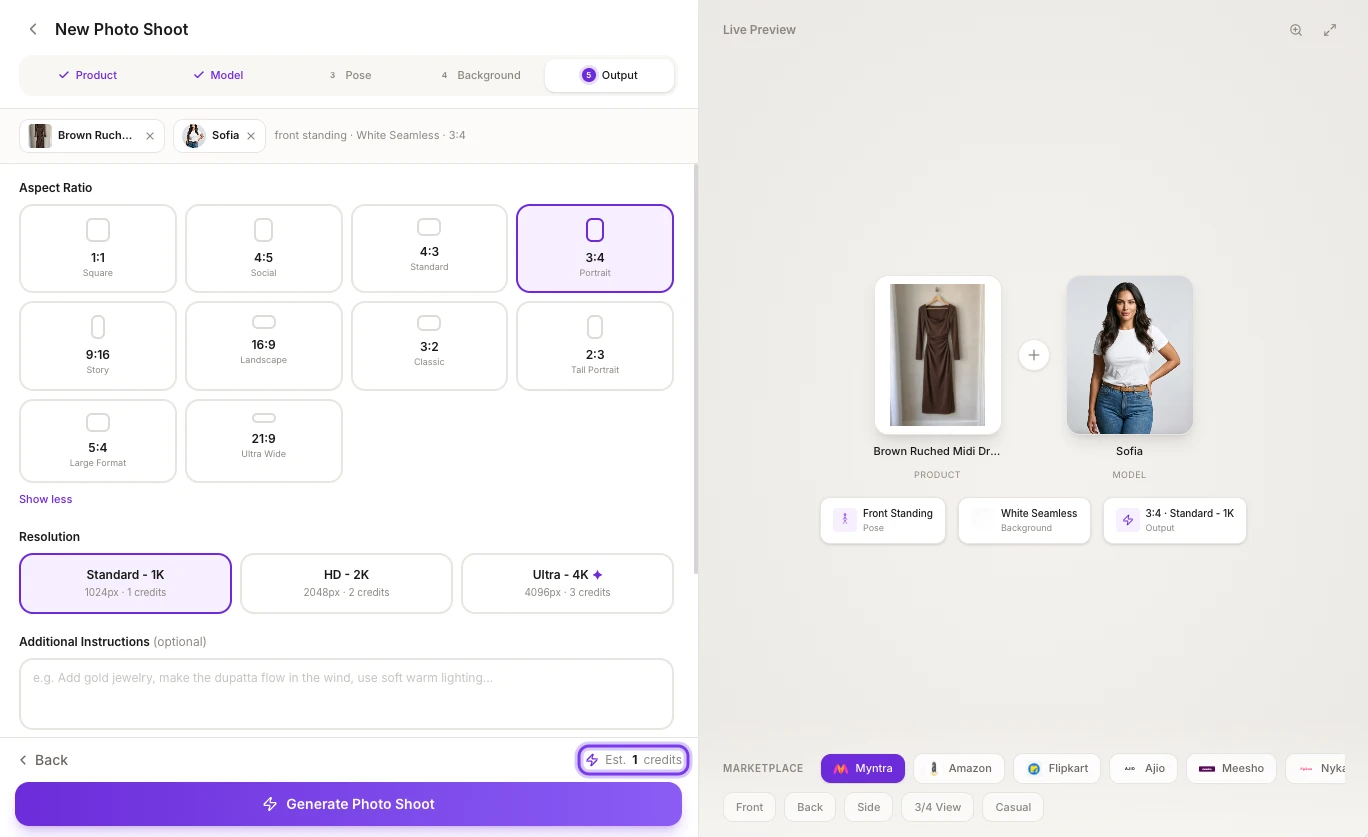
| Ratio | Name |
|---|---|
| 1:1 | Square |
| 4:5 | Social |
| 4:3 | Standard |
| 3:4 | Portrait (selected unless you choose another) |
| 9:16 | Story |
| 16:9 | Landscape |
| 3:2 | Classic |
| 2:3 | Tall Portrait |
| 5:4 | Large Format |
| 21:9 | Ultra Wide |
Some common choices:
- 3:4 Portrait for marketplace listings. Myntra wants 1080×1440 images, which are 3:4.
- 1:1 Square for catalog grids, and for Amazon, Flipkart, Ajio and Meesho.
- 9:16 Story for Stories and Reels.
The Myntra and Nykaa Fashion presets use 3:4, and the Amazon, Flipkart, Ajio and Meesho presets use 1:1. See Use marketplace presets.
Resolution and credits
| Resolution | Size | Credits per photo |
|---|---|---|
| Standard - 1K (selected unless you choose another) | 1024 px | 1 |
| HD - 2K | 2048 px | 2 |
| Ultra - 4K | 4096 px | 3 |
Standard 1K is enough for most listings. Choose HD 2K or Ultra 4K when the photo needs to hold up to zoom, print or cropping.
Your browser remembers the aspect ratio and resolution you used, so they're ready for your next photoshoot. See How credits work.
To see what your plan includes, check Compare plans.
Styling options for your garment mode
In some garment modes, the Output step has extra options:
| Garment mode | Option | What you can choose |
|---|---|---|
| Saree mode | Saree Styling (optional) | Jewellery, Jewellery from Model and Hairstyle, matched to the saree's style |
| Salwar kameez mode | Outfit Styling (optional) | The same jewellery and hairstyle choices |
| Shirt mode | Shirt Options | Collar (Point, Spread, Button-down or Chinese), Sleeve (Full or Half), Fit (Slim, Regular or Relaxed) and Pocket (None, One or Two) |
- You can choose Jewellery or Jewellery from Model, not both. Jewellery from Model keeps the jewellery the model already wears in her photo. If she has none, none is added.
- In Shirt mode, the defaults are a Point collar, Full sleeves, a Regular fit and no pocket. If you uploaded a logo, Logo Position (optional) lets you pick Left Chest, Back Neck Tag or both. The chest logo is placed from your uploaded file. The back neck tag only shows in shirt product shots, not in the photoshoot.
Additional Instructions
Under Additional Instructions (optional), describe anything else you want, for example "Add gold jewelry, make the dupatta flow in the wind, use soft warm lighting". Use it for requests the presets don't cover.
Shoot Summary
The SHOOT SUMMARY lists your Product, Model, Pose, Background (for example "Ethnic Indoor - Haveli Courtyard"), Aspect Ratio and Resolution. On a computer, the Output card in the Live Preview shows your ratio and resolution too, for example "3:4 · Standard - 1K".
To change something, click its step tab at the top of the page.
Generate
The footer shows the cost, for example Est. 2 credits. Click Generate Photo Shoot to start. If you don't have enough credits, the page tells you how many you need, and the button changes to Not Enough Credits.
Selling on Myntra?
Generate in 3:4 Portrait, then download a 1080×1440 image with the Myntra option under MARKETPLACE EXPORT. See Download and export.
Frequently asked questions
It depends on where you sell: 3:4 Portrait matches Myntra's 1080×1440 images, and 1:1 Square suits catalog grids. Pick your marketplace in the MARKETPLACE bar to let its preset set the ratio for you. For the size each marketplace export uses, see Download and export.
Use 4:5 Social for feed posts and 9:16 Story for Stories and Reels. To see 9:16 Story, click + 6 more ratios.
Standard - 1K is enough for most listings and costs 1 credit a photo. Choose HD - 2K (2 credits) or Ultra - 4K (3 credits) when the photo needs to hold up to zoom, print or cropping.
Yes. On the Photo Shoot Result page, click Upscale under the photo, then Upscale to 4K. It makes the same photo in a higher resolution for 3 credits. See Upscale to 4K.
Yes, with New Variation on the Photo Shoot Result page. On its Output step, pick another ratio, such as 9:16 Story for Reels or 1:1 Square for a catalog grid. It costs 1, 2 or 3 credits, by resolution. See Make a new variation.
Related
Choose a background
Pick a background for your AI photoshoot: studio white, Indian heritage and ethnic interiors, lifestyle, urban and luxury scenes, or upload your own background.
Use marketplace presets
One-click image presets for Myntra, Amazon, Flipkart, Ajio, Meesho and Nykaa Fashion: the aspect ratio, white background, resolution and poses for each.