
Photoshoot templates
Browse 100+ ready-made fashion photoshoot templates, filter by clothing type, preview the lighting and composition, and recreate the look with your own product.
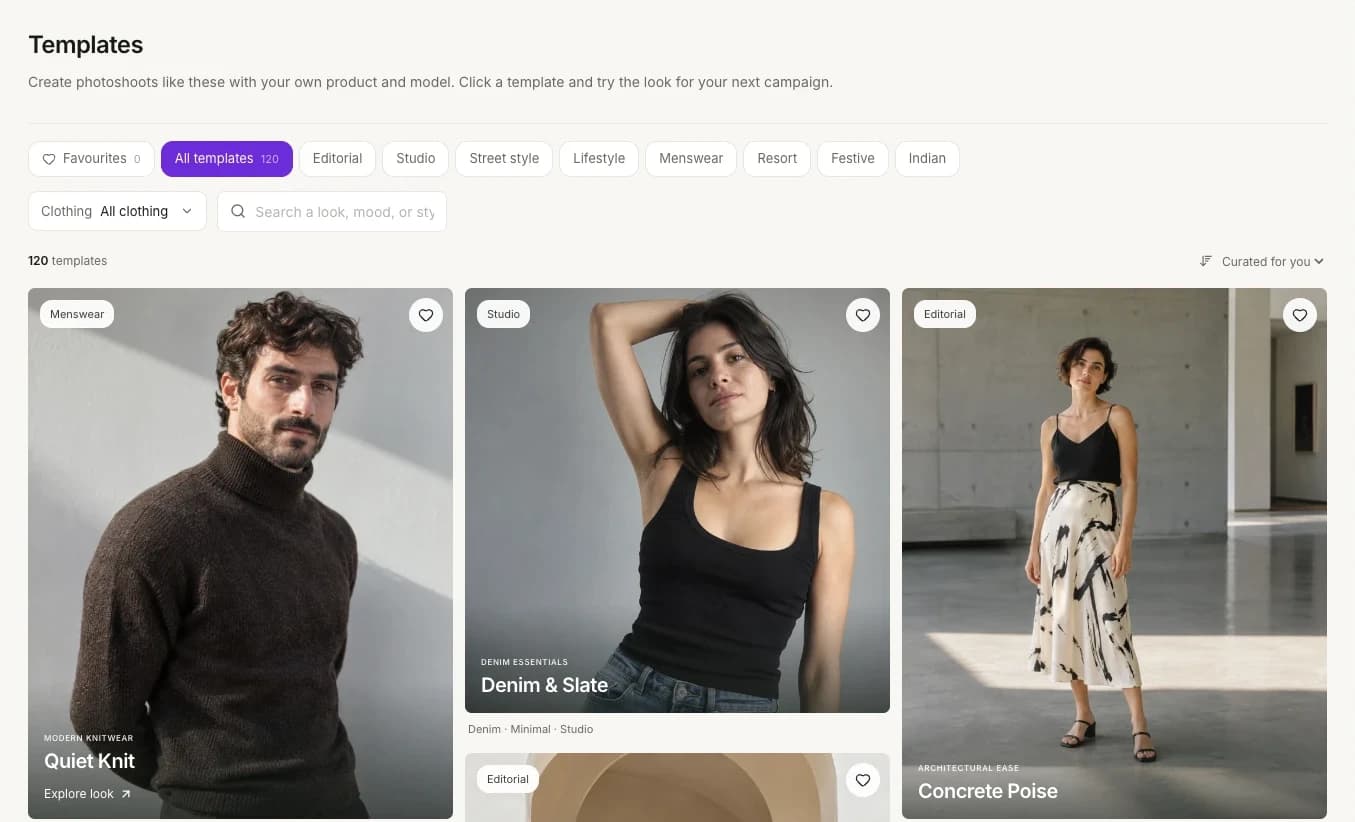
The Templates gallery is a collection of fashion photoshoot templates: ready-made looks from ApparelAI. Each look gives you a starting point (a setting, a pose, lighting and composition) that you recreate with your own product and model.
Open TemplatesTo open it, click Templates in the sidebar. You can also click Start from Template under Quick Actions on Home, or View all templates in the Try a template section below it.
Looking for your own saved settings?
Templates in the gallery are made by ApparelAI. To save and reuse your own model, pose, background and output settings, use shoot templates.
Find a look
The gallery shows how many templates match your choices, such as "120 templates". To narrow it down:
- Pick a style. Click a chip in the row at the top: All templates, Editorial, Studio, Street style, Lifestyle, Menswear, Resort, Festive or Indian.
- Filter by clothing. Click Clothing: All clothing and pick a type of garment. The list has its own search box.
- Search. Type a look, mood or style in the search box.
- Sort. Choose Curated for you (the default) or Name: A–Z.
The clothing types are Dresses, Tops & T-shirts, Shirts, Knitwear, Denim, Trousers & Shorts, Skirts, Suits & Blazers, Co-ords, Jackets & Coats, Activewear, Swimwear, Jumpsuits, Sarees, Kurtas & Sets, Lehengas and Sherwanis.
Each card shows a category, such as Menswear or Festive, the collection name in capitals, the template name, Explore look and a few tags, such as "Knitwear · Minimal · Portrait".
Preview a look
Click a card to open its preview over the gallery. The photo is on the left. On the right are the template's name, a one-line description of the look, its tags, and three notes on how it's shot:
- LIGHTING, such as "Natural-looking directional light with soft fill".
- COMPOSITION, such as "Waist-up · shoulder turn".
- COLOUR STORY: swatches of the look's three main colours.
At the bottom are Use template, a heart to add the look to your favourites or remove it, and arrows to move to the previous or next template. A counter, such as "01 / 120", shows where you are in the gallery. To close the preview, click the X in the top-right corner.
Save favourites
Click the heart on a card, or in the preview, to add the look to your favourites. To remove it, click the heart in the preview again. To see only your favourites, click the Favourites chip at the start of the row. It shows how many looks you've saved.
Use a template
Pick a look
Find a template that suits your garment, and click it to open the preview.
Use the look
In the preview, click Use template.
Add your product and model
Add your garment and choose the model who'll wear it. See Choose a model.
Generate and review
Generate your version. Check the garment details against your real product, then download your photos.
A template shoot costs the same as any photoshoot: 1 credit per photo at 1K, 2 at 2K and 3 at 4K. See How credits work.
Photoshoot ideas to try
These looks appear in Try a template on Home:
| Template | Category | Collection | Tags |
|---|---|---|---|
| Quiet Knit | Menswear | Modern knitwear | Knitwear · Minimal · Portrait |
| Denim & Slate | Studio | Denim essentials | Denim · Minimal · Studio |
| Corner Store | Street style | Between the takes | Candid · Cotton · Daylight |
| The City Edit | Street style | Out of the studio | Denim · City · Walking |
| Rose Kurta Swing | Festive | Celebration at home | Kurta · Rose · Swing |
| Emerald Corridor | Festive | Tradition in motion | Saree · Emerald · Walk |
The gallery has many more. For ethnic wear, click the Festive or Indian chip, or filter by Sarees, Kurtas & Sets, Lehengas or Sherwanis. Festive looks include Heritage Blue (lehenga), Monsoon Veranda (saree), Terracotta Walk (salwar kameez) and Marigold Melody (kurta).
Use a template in a bulk photoshoot
In the Photoshoot step of a bulk photoshoot, click Load a template and pick a look under First photo look. Photo 1 of every product then uses that look. The background choice is hidden, because the look supplies it, and any extra poses you add are based on that first photo. Each product can have up to 10 photos, including the template photo. See Bulk photoshoot.
Frequently asked questions
A sharp, well-lit photo against a simple background. A flat lay is a good start: keep the neckline, sleeves, hem and pattern visible, and avoid folded or hidden details. For a saree, show the body, border and opened pallu. A clear phone photo can work. See Prepare your garment photos.
Not always. ApparelAI uses your garment photo as a reference, but results can vary in color, weave, fit, drape and small details. A template preview shows a direction, not a guaranteed result. Compare the photo with your product, especially logos, embroidery, borders and stitching, and regenerate or fix anything that's off before you list it.
Yes. ApparelAI's terms license generated images for commercial and personal use, including ecommerce listings, marketing and social media, and ApparelAI doesn't claim ownership of your uploads or results. You're responsible for having the rights to what you upload, checking that the photos show your product accurately, and following the disclosure rules of the platform where you publish.
For more answers, see the ApparelAI FAQ.
Related
Use marketplace presets
One-click image presets for Myntra, Amazon, Flipkart, Ajio, Meesho and Nykaa Fashion: the aspect ratio, white background, resolution and poses for each.
Reuse settings with shoot templates
Save your model, pose, background and output choices as a shoot template, then apply it in one click to keep every product photo in your catalog consistent.