
Choose a pose
Choose from 40+ preset poses for clothing photoshoots, including ethnic, editorial and seated poses, upload a pose reference, or describe a pose in words.
The pose sets how the AI model wearing your clothes stands, sits or moves. In the Pose step of Create Photo Shoot, you pick one pose for your photo: a preset, one of your own poses, or a pose you describe in words. The app's tip: use Standard poses for e-commerce and Editorial poses for campaigns.
Each photoshoot makes one photo with one pose. For a full set, run another shoot with a different pose, or use Bulk photoshoot, which makes up to 10 photos per product.
To see which of these options your plan includes, check Compare plans.
Preset poses for e-commerce and campaigns
Click a preset to select it. Front Standing is selected unless you choose something else.
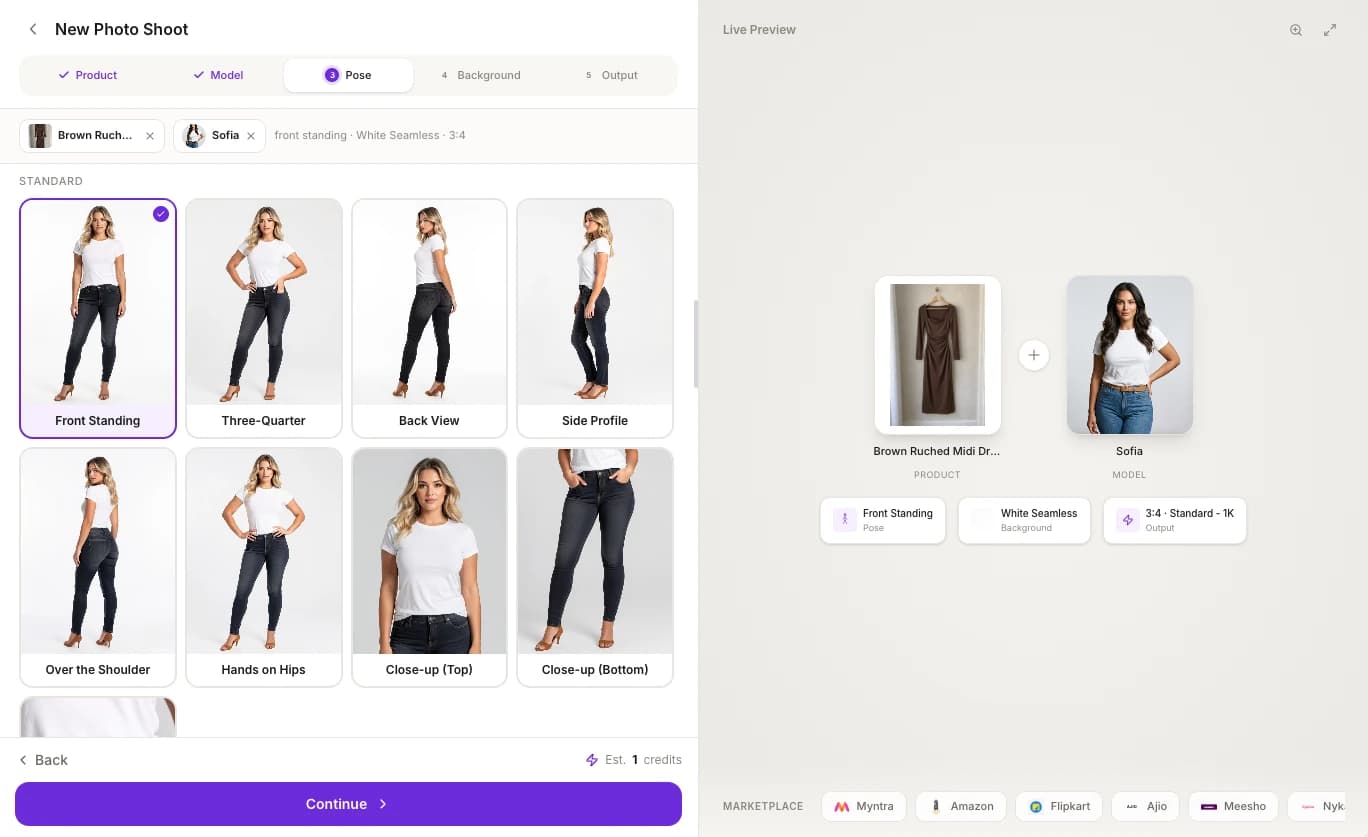
| Category | Poses |
|---|---|
| Ethnic | Saree Drape Front, Hands Clasped, Back Drape, Detail Close Up, Glam Touch, Walking Away, Walking Side, Seated Casual, Hand to Forehead, Pallu Over Hand, Lehenga Twirl, Dupatta Flow, Namaste Greeting |
| Standard | Front Standing, Three-Quarter, Back View, Side Profile, Over the Shoulder, Hands on Hips, Close-up (Top), Close-up (Bottom), Fabric Close-up |
| Movement | Casual Walk, Confident Stride, Runway Walk, Twirl / Spin |
| Casual | Hands in Pockets, Leaning on Wall, Crossed Arms, Hair Touch, Adjusting Cuff, Crossed Legs |
| Seated | On Stool, On Floor, Chair Lean Forward, On Stairs |
| Editorial | Power Pose, Torso Crop, Sculptural Stretch, Candid Moment, Hands Near Face, Low Angle |
| Dynamic | Dramatic Turn, Squat Pose, Jump Shot, Wind Blown |
Ethnic poses are listed first for users in India.
Shooting a lehenga?
Try Lehenga Twirl, or another pose that lets the skirt open out, so the flare and the hem work show properly.
Poses that depend on your garment mode
The list changes with the garment mode you've chosen in Settings:
| Garment mode | What changes |
|---|---|
| Standard | All the categories above, without the five Saree-only Ethnic poses |
| Saree mode | The full Ethnic list above. Walking Away, Walking Side, Seated Casual, Hand to Forehead and Pallu Over Hand only appear in Saree mode |
| Dupatta mode | Only seven dupatta poses: Full-body Drape, Veil with Matka, Twirling Flow, Back Turn Drape, Seated Drape, One-hand Side Lift and Walking Trail |
| Shirt mode | Adds Three-Quarter Turn to the Standard poses |
Recommended poses
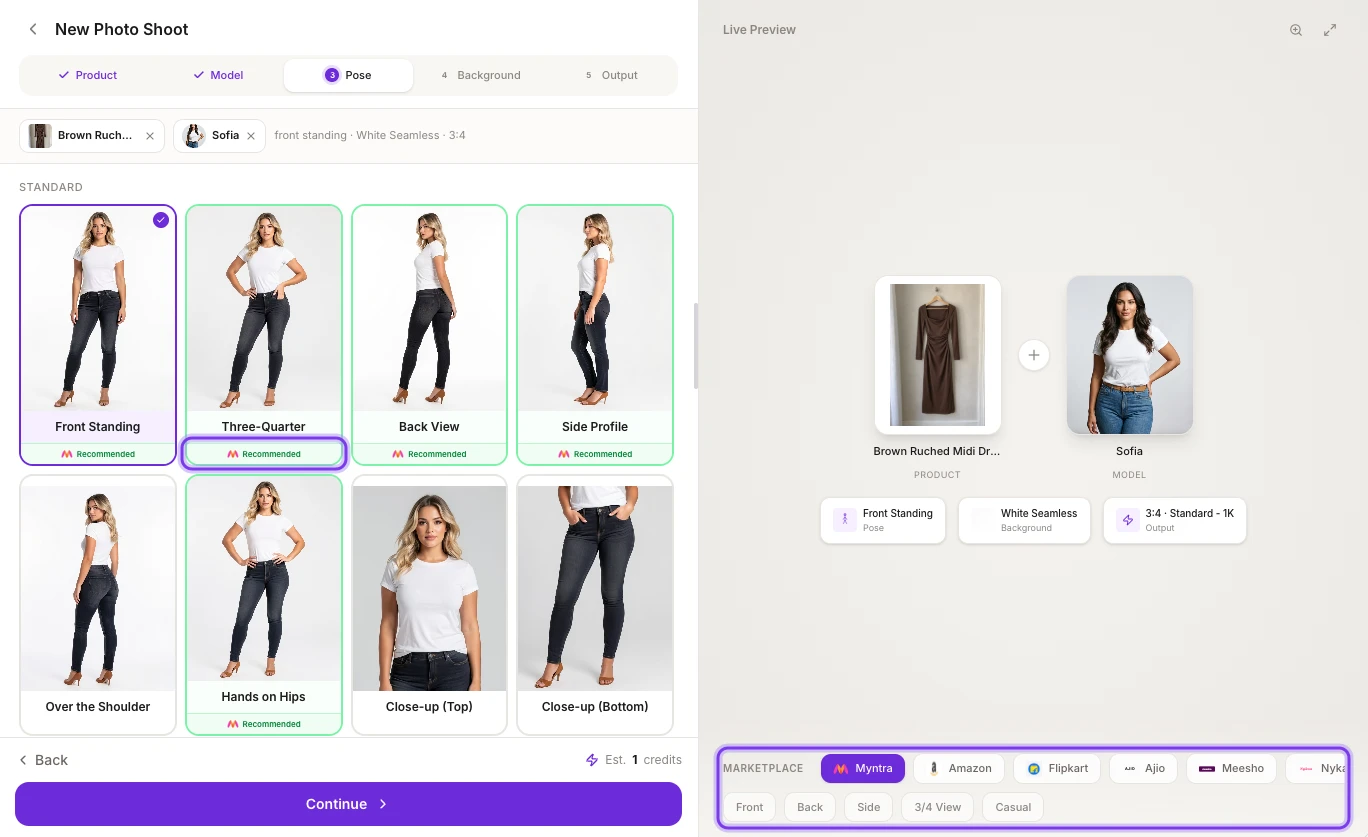
If you pick a marketplace in the MARKETPLACE bar, the poses that suit it get a green border, the marketplace's logo and a Recommended label. See Use marketplace presets.
Use your own pose
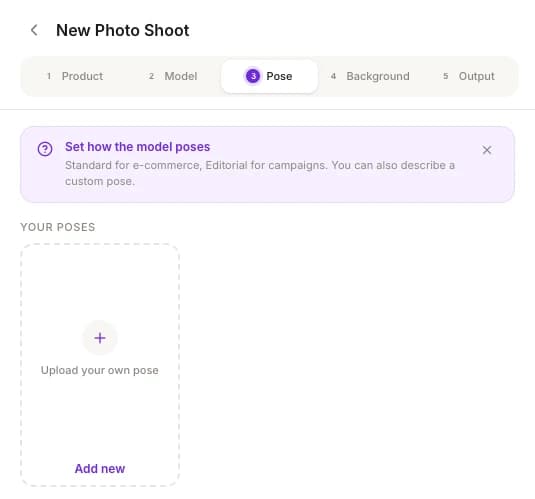
Upload any photo, and the model copies its pose and framing. Your poses are saved under YOUR POSES, at the top of the Pose step, so you can use them again in any shoot.
Open the upload box
In the Pose step, click Upload your own pose under YOUR POSES.
Name the pose
Enter a Name, such as "Hand on hip". The app fills it in from the file name, and you can change it (up to 80 characters).
Choose the reference photo
Click Choose image and pick a JPG, PNG, WebP or HEIC photo.
Save it
Click Save. The pose appears under YOUR POSES. Click it to use it in this shoot, and click it again to deselect it.
You can also see your saved poses in Settings › Custom Poses.
Only upload photos you have the right to use.
Describe a pose in words
Under OR DESCRIBE A CUSTOM POSE, type the pose you want, for example "Standing with one hand on hip, slight turn, editorial look". The quick-add chips (+ hand on hip, + walking, + seated, + leaning and + over shoulder) add those words to your description. When you type a custom pose, the preset you had selected is cleared.
Back-view poses
Back-view poses, such as Back View, show the back of the garment. In Standard and Dupatta mode, you can add a back photo in the Back side (optional) tile of the Product step, so the photo shows the garment's real back design. If you picked a saved product, a back photo you add there is saved to that product right away. Without a back photo, the back in the photo may not match your garment.
Related
Choose a model
Pick a ready-made AI fashion model from the gallery, create a custom AI model for your brand, or upload photos of a real model to reuse across every shoot.
Choose a background
Pick a background for your AI photoshoot: studio white, Indian heritage and ethnic interiors, lifestyle, urban and luxury scenes, or upload your own background.