
Choose a model
Pick a ready-made AI fashion model from the gallery, create a custom AI model for your brand, or upload photos of a real model to reuse across every shoot.
The model is the person who wears your garment in the photos: an AI fashion model or a real person. Every model you add or create is saved on the Models page, and you can use it in as many photoshoots as you like.
Open ModelsYou have three ways to get a model:
| Option | What it is | Where |
|---|---|---|
| Model gallery | 50+ ready-made models you add to your own list | Our models on the Models page, or Use our models in a photoshoot |
| AI model | A model you design by choosing gender, age, ethnicity, body, skin tone and hair | Create AI Model › Generate with AI |
| Uploaded model | A photo of a real model, used as the model | Create AI Model › Upload Model Photo |
To see how many models your plan includes, check Compare plans.
Pick a model in a photoshoot
In the Model step of Create Photo Shoot, you can:
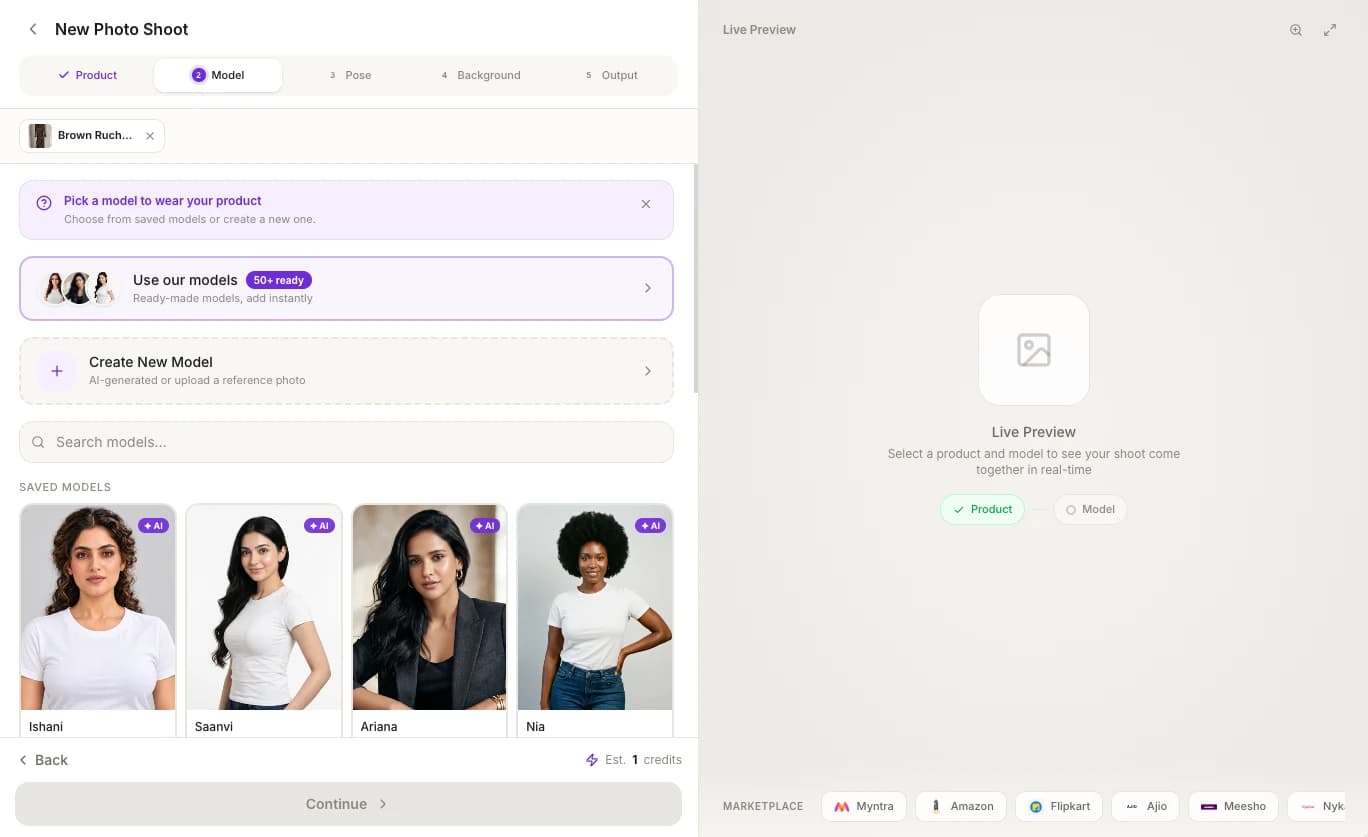
- Pick one of your models under SAVED MODELS. Each one shows an AI or Uploaded badge, its name, and its gender and age range. Use Search models... to find one by name. Clicking a model selects it and moves you to the Pose step.
- Click Use our models to open the Model gallery. A model you add there is also selected for the shoot.
- Click Create New Model to make a new model. When you save it, choose Save & Use in Shoot to use it straight away.
Add a model from the gallery
The Model gallery has 50+ ready-made models of different genders, ethnicities, ages and body types.
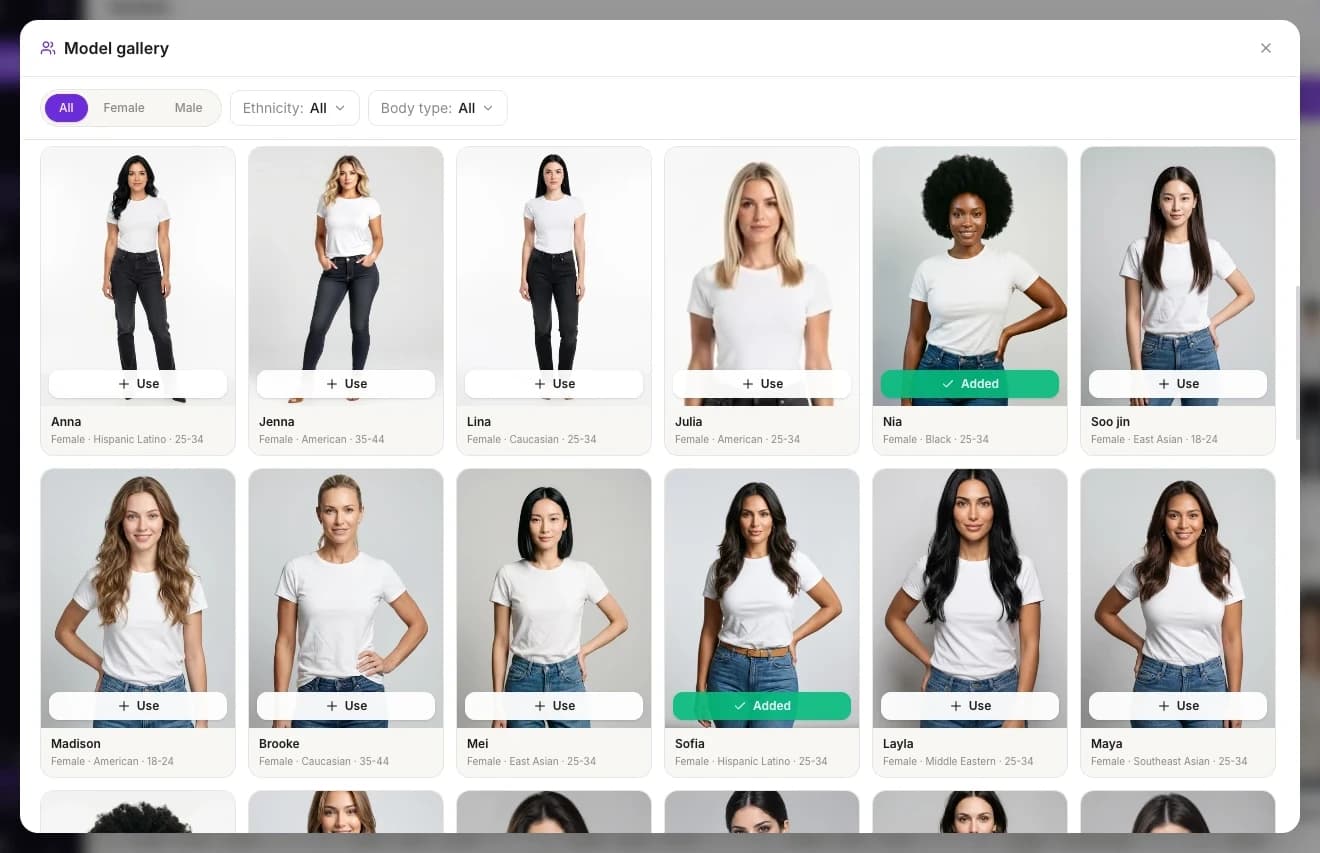
Open the gallery
On the Models page, click Our models. In a photoshoot, click Use our models.
Filter the models
Choose All, Female or Male, and narrow the list with the Ethnicity and Body type menus. Click Reset to clear the filters.
Add the model
Click Use on a model. It's added to your models, and the button changes to Added. To see a model's details first (gender, ethnicity, age, body type, hair and skin tone), click its card, then click Use this model.
Gallery models are adults, in the age ranges 18-24, 25-34, 35-44 and 55+. If you can't find the model you need, click Create my own model at the bottom of the gallery, or Contact us to ask the ApparelAI team to add one.
Show the fit on different bodies
Shoot the same garment on models with different body types. It shows shoppers how the garment fits people like them.
Create a custom AI model
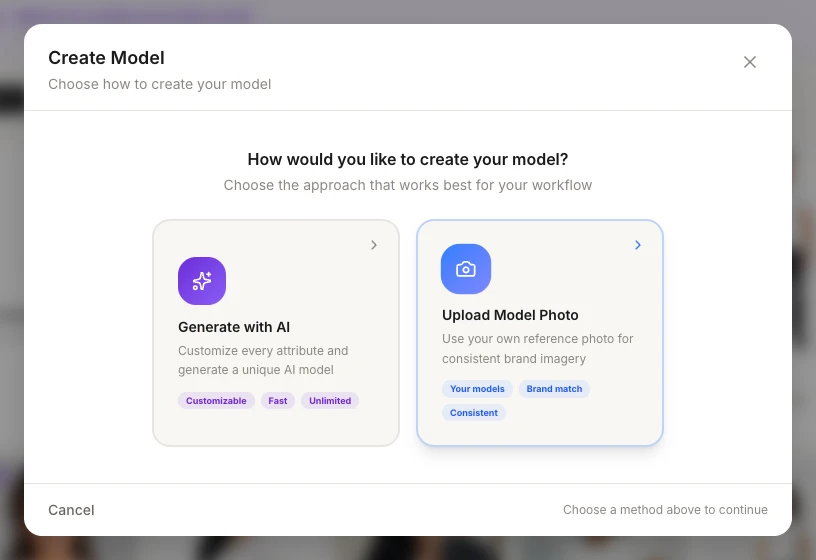
Design your own model by choosing its look. On the Models page, click Create AI Model, then choose Generate with AI.
Basic Info
Enter a Model Name (required), choose a Gender and an Age Range, then click Continue.
Attributes
Choose the ethnicity, skin tone, body type, hair color and hair style. Then click Continue.
Clicking Continue here starts generating a preview of your model, which uses 1 credit.
Preview
Check the preview and the Model Summary. If it isn't right, click Regenerate Preview (each new preview uses another credit) or Edit Attributes.
Save
Click Save Model. If you started from a photoshoot, you can click Save & Use in Shoot instead.
These are the choices:
| Choice | Options |
|---|---|
| Gender | Female, Male |
| Age Range | 2-5, 5-10, 18-24, 25-34, 35-44, 45-54, 55+ |
| Ethnicity | Indian, American, Caucasian, Black, East Asian, South Asian, Southeast Asian, Hispanic/Latino, Middle Eastern, Mediterranean, Scandinavian, Mixed |
| Skin Tone | Fair, Light, Medium, Olive, Tan, Brown, Dark Brown, Deep |
| Body (female) | Slim, Petite, Regular, Athletic, Hourglass, Curvy, Plus Size |
| Body (male) | Slim, Lean, Regular, Athletic, Muscular, Broad, Stocky, Plus Size |
| Hair color | Black, Dark Brown, Light Brown, Blonde, Red, Auburn, Gray, Platinum |
| Hair style (female) | Straight Long, Straight Medium, Straight Short, Wavy Long, Wavy Medium, Curly, Bob, Lob (Long Bob), Pixie Cut, Bangs / Fringe, Layered, Braided, Ponytail, Bun / Updo, Afro, Locs, Side Part |
| Hair style (male) | Short Crop, Buzz Cut, Fade, Undercut, Slicked Back, Side Part, Textured Crop, Pompadour, Curly Short, Messy / Tousled, Man Bun, Medium Length, Afro, Locs, Crew Cut, Quiff |
Kidswear
For kidswear, create an AI model with the 2-5 or 5-10 age range. The gallery only has adult models.
Upload a photo of a real model
Use this if you work with a house model or an influencer and want that person in your photos. On the Models page, click Create AI Model, then choose Upload Model Photo.
You need permission to use the photo
Only upload a photo you have permission to use, including the explicit, written consent of the person in it. This applies to everyone, including models, influencers and public figures. If you upload a photo without permission, you're responsible for it. Using someone's face or likeness without consent can break the law, and ApparelAI can suspend or close accounts that do it. See the Terms and Conditions.
Upload Photo
Drag a photo into the box or click to browse (JPG, PNG or WEBP). For best results, use a clear, front-facing, full-body photo with good lighting and a neutral background. Click Continue.
Basic Info
Enter a Model Name and choose a Gender and an Age Range.
Save
Click Save Model, or Save & Use in Shoot if you started from a photoshoot.
An uploaded model keeps only its gender and age range. It doesn't have the ethnicity, body or hair choices of an AI model.
Manage your models
The Models page lists every model you've added or created.
- Filter and find. Switch between All, AI and Uploaded, search with Search models..., and change the order with Sort by.
- Shoot. Hover over a model and click Use in Shoot to start a photoshoot with it.
- Rename. Hover over a model and click Edit to see its details, then click the pencil next to its name. You can only change the name: a model's look is fixed once it's created. For a different look, create a new model.
- Delete. Hover over a model, click the trash icon and confirm Delete Model. Deleting can't be undone.
Keep one face across your catalog
Use the same model for every product in a collection, so your catalog looks like one brand. A different face on every listing looks like a reseller.
- Reuse a small set of poses and backgrounds across the collection too.
- Give each line its own face if you like. For example, a menswear line can have its own model, separate from your womenswear catalog.
- Photos you shoot with your model can become videos with the same face. See Videos from a photoshoot.
Related
Create a photoshoot
Turn a flat lay or product photo into an AI model photoshoot in five steps: choose your product, model, pose, background and output, then generate your photo.
Choose a pose
Choose from 40+ preset poses for clothing photoshoots, including ethnic, editorial and seated poses, upload a pose reference, or describe a pose in words.