
Download and export
Download AI photoshoot photos at original quality, one by one or all at once, and export marketplace-ready JPGs for Myntra (1080×1440), Amazon and more.
When your photos are ready, download one photo, download all or some of a project's photos together, or export them at the size a marketplace asks for, such as 1080×1440 for Myntra. Every shoot stays in its project, so you can come back and download photos again later.
| Option | Where | What you get |
|---|---|---|
| Download | Under a photo | That photo at original quality |
| Download All | The Download menu in a project | Every photo in the project, at original quality |
| Download Selected | The Download menu in a project | The photos you pick, at original quality |
| MARKETPLACE EXPORT | The Download menu in a project | JPG files at the image size and file-size limit of the marketplace you choose |
Download a photo
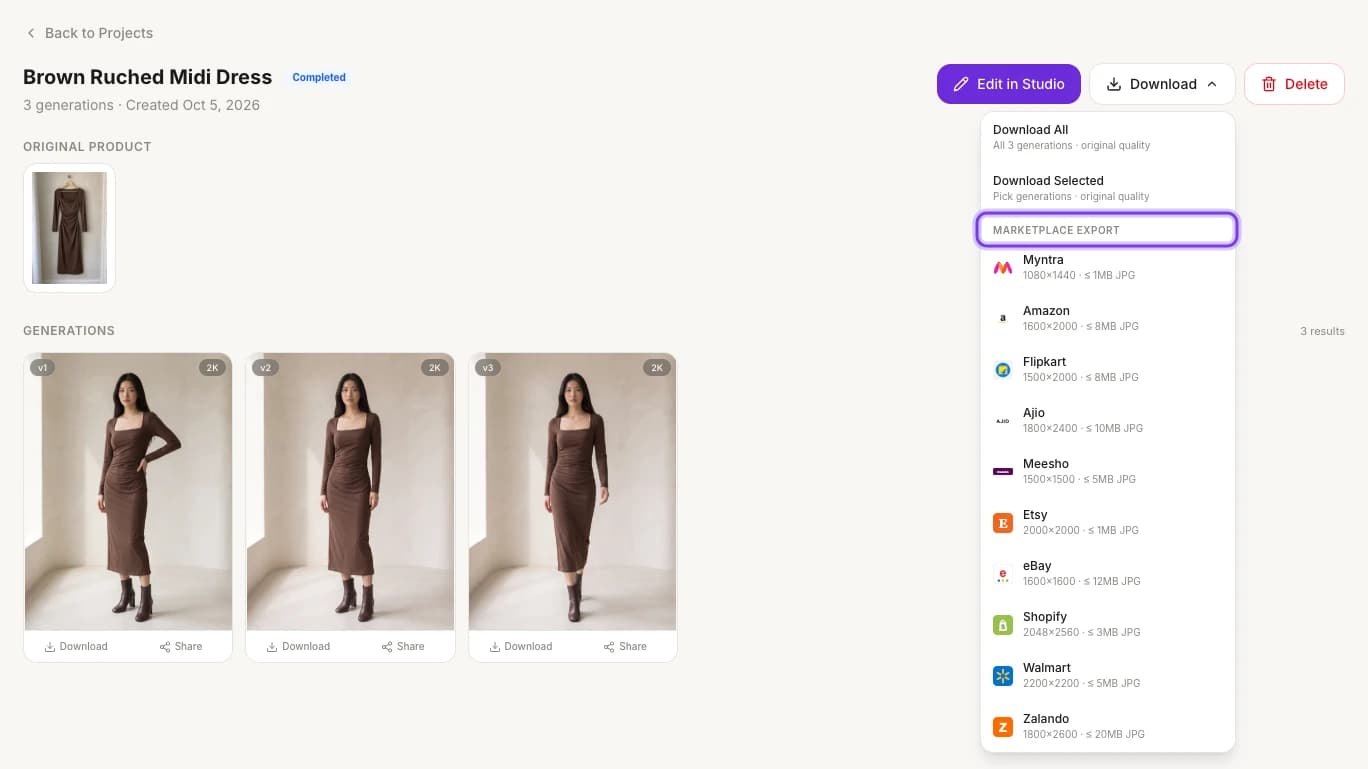
Open the project and click Download under the photo in GENERATIONS. On the Photo Shoot Result page, Download under the large photo downloads the version on screen.
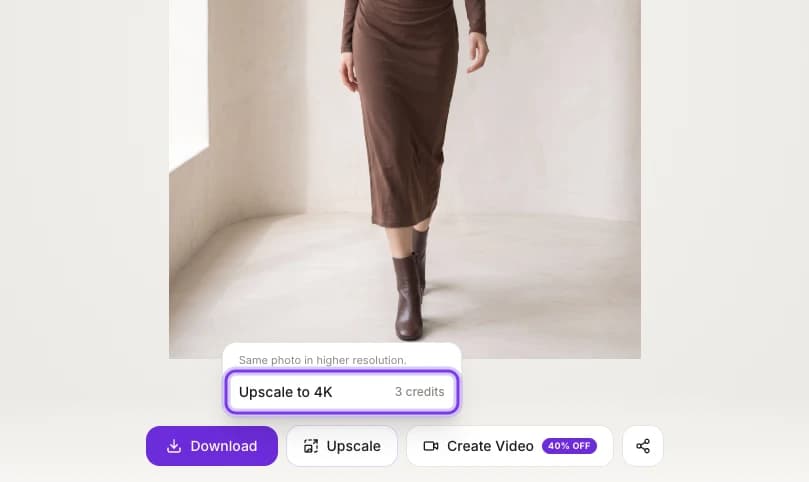
Downloads are at original quality: the resolution you chose when you generated the photo. There's no separate 4K download. For a bigger file, click Upscale under the photo on the Photo Shoot Result page, then Upscale to 4K. It makes the same photo in a higher resolution for 3 credits.
Download several photos at once
Download a whole shoot, or just the photos you want, from the project's Download menu instead of one photo at a time.
Open the project
Click Projects in the sidebar, then the project with the photos you want.
Open the Download menu
Click Download at the top of Project Details.
Choose what to download
Click Download All to download every photo in the project at original quality, or Download Selected to pick the photos first.
The same menu lists marketplace sizes under the highlighted MARKETPLACE EXPORT heading. See Export for marketplaces.
Export for marketplaces
Under MARKETPLACE EXPORT in a project's Download menu, pick a marketplace. You get JPG files at that marketplace's image size and under its file-size limit, so you don't have to resize or compress photos yourself.
| Marketplace | Image size (pixels) | Aspect ratio | Max file size |
|---|---|---|---|
| Myntra | 1080×1440 | 3:4 | 1 MB |
| Amazon | 1600×2000 | 4:5 | 8 MB |
| Flipkart | 1500×2000 | 3:4 | 8 MB |
| Ajio | 1800×2400 | 3:4 | 10 MB |
| Meesho | 1500×1500 | 1:1 | 5 MB |
| Etsy | 2000×2000 | 1:1 | 1 MB |
| eBay | 1600×1600 | 1:1 | 12 MB |
| Shopify | 2048×2560 | 4:5 | 3 MB |
| Walmart | 2200×2200 | 1:1 | 5 MB |
| Zalando | 1800×2600 | 9:13 | 20 MB |
For the best fit, generate the photo in the same aspect ratio as the export: for example 3:4 Portrait for Myntra, 4:5 Social for Amazon or 1:1 Square for Meesho. You choose it in the wizard's Output step. Zalando's 9:13 has no exact match; 2:3 Tall Portrait is the closest.
Export for Myntra
Myntra listings use a 1080×1440 portrait image, which is a 3:4 aspect ratio. Choose Myntra under MARKETPLACE EXPORT to get 1080×1440 JPGs of 1 MB or less, ready to upload.
Set up the shoot for Myntra
When you create the photoshoot, choose Myntra under MARKETPLACE in the wizard, then one of its shots, such as Front. It sets a 3:4 portrait, HD - 2K and a white background for you. See Marketplace presets.
Check every photo before you list it
The right size removes the most common reason marketplaces reject images, but not every reason. Before you upload, check each photo for a clean background, a garment that fills the frame, accurate color, and no visible flaws around hands, necklines and hems. Compare it with your real garment too: AI photos can differ from the product in small details.
Nykaa Fashion, social media and other stores
Nykaa Fashion isn't in the export menu. Set the photo up for it when you create it instead: choose Nykaa Fashion under MARKETPLACE in the photoshoot wizard, and it applies a matching pose, background, aspect ratio and resolution. Then download the original. The wizard has presets for Myntra, Amazon, Flipkart, Ajio and Meesho too. See Marketplace presets.
For social media, or a store that isn't in the export list:
Generate in the right shape
In the wizard's Output step, choose the aspect ratio that fits where the photo is going.
| Where the photo goes | Aspect ratio |
|---|---|
| Catalog grids | 1:1 Square |
| Stories and Reels | 9:16 Story (under + 6 more ratios) |
Download the original
Download the photo at original quality.
Check the platform's rules
Check the platform's own image size and format requirements before you upload.
Choose the resolution before you generate
You choose the resolution in the wizard's Output step, and it sets the credit cost.
| Resolution | Size | Credits per photo |
|---|---|---|
| Standard - 1K | 1024px | 1 |
| HD - 2K | 2048px | 2 |
| Ultra - 4K | 4096px | 3 |
Standard - 1K is enough for most listings. Choose HD - 2K or Ultra - 4K when the photo needs to hold up to zoom, print or cropping.
For all the output options, see Output settings.
Videos and AI tool results
- Videos: videos you make with AI Image to Video are saved in Your videos, which opens Tool history, ready to watch and download. See AI Image to Video.
- AI tool results: every tool run is saved in Tool history, so you can open it again and download the result. Click History on any AI tool page to open it. See AI tools.
Related
Projects and history
Every photoshoot is saved as a project. Find past shoots, reopen them to make new variants, swap models or backgrounds, and download without re-uploading.
Compare plans
Compare ApparelAI plans and pricing: Free, Pro, Growth, Business and Agency, with the monthly credits in each, monthly or annual billing, and how to upgrade.