
Turn a photo into a video
Turn any fashion or product photo into a video for listings, Reels and ads: pick one of 20 motion templates or describe your own, then choose length and format.
AI Image to Video turns one still fashion photo into a short video. Use it when you want a product page video, a Reel or an ad without a video shoot. It works with any fashion or product photo you upload, with or without a model.
Open AI Image to VideoAlready made the photo in ApparelAI?
You can also make the video inside the project where you made the photo. That's where you'll find the UGC Styling Tip, a video where the model talks to the camera and gives styling advice. See Videos from a photoshoot.
Photos you can use
Start from one photo of your garment or product. Any of these works:
- A photo of a model wearing the garment
- A flat lay
- A hanger shot
- A mannequin or ghost mannequin shot (you can make one with AI Ghost Mannequin)
Upload a JPG, PNG or WebP file of up to 25 MB.
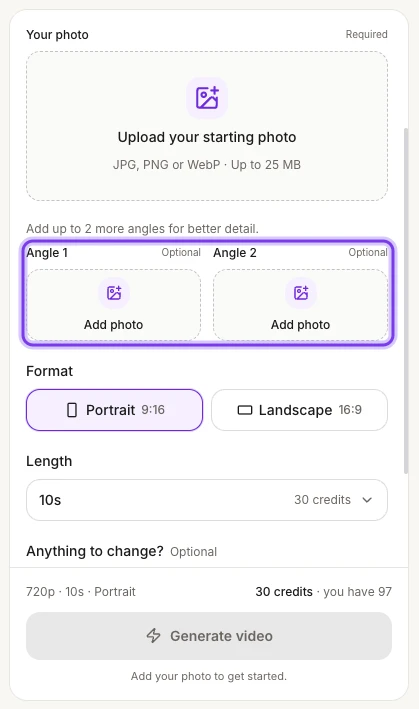
You can also add up to 2 extra angles of the same garment, like the back or a side. They help keep details accurate, such as the back of the garment.
Make a product video from a photo
Open AI Image to Video
On the web, select AI Tools in the sidebar, then AI Image to Video under VIDEO.
Choose a motion
Watch the preview clips and pick one of the 20 motion templates. Or choose Your own idea and describe the movement or scene in your own words.
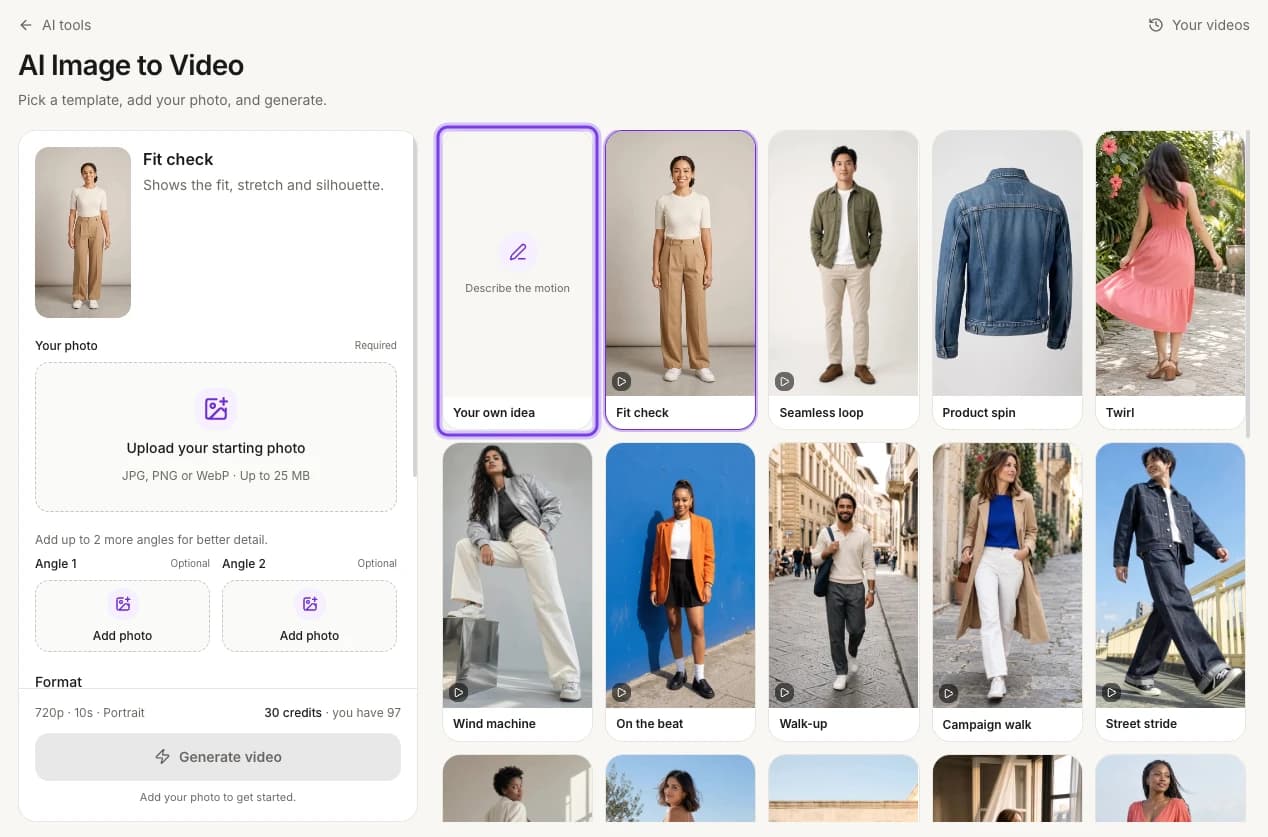
The template opens with its name and a short description. To pick a different one, select Change template.
Upload your photo
Under Your photo, upload the photo you want to bring to life.
The highlighted Angle 1 and Angle 2 slots are optional. See the next step.
Add extra angles (optional)
Under Angle 1 and Angle 2, add up to 2 more photos of the same garment, like the back or a side.
Choose the format
Under Format, pick Portrait 9:16 for Reels, Stories and TikTok, or Landscape 16:9 for websites, YouTube and Amazon. Portrait is selected at first.
Choose the length
Open Length and pick 3, 5, 7, 10, 15, 20, 25 or 30 seconds. Each length shows its credits, and 10 seconds is selected at first. The channel guide suggests a length for each place you post.
Add a note (optional)
To adjust the template, type a short note in Anything to change?, like "slower camera, turn to the left".
Add sound (optional)
Videos are silent unless you add sound. Open More options and switch on Ambient audio for natural sound to complement the scene.
Generate the video
Check the summary above the button. It shows the quality, length and format, such as "720p · 10s · Portrait", and the total credits next to your balance. Then select Generate video. The button stays greyed out until you add your photo.
The video is made in the background, so you can leave the page and keep working.
Watch and download your video
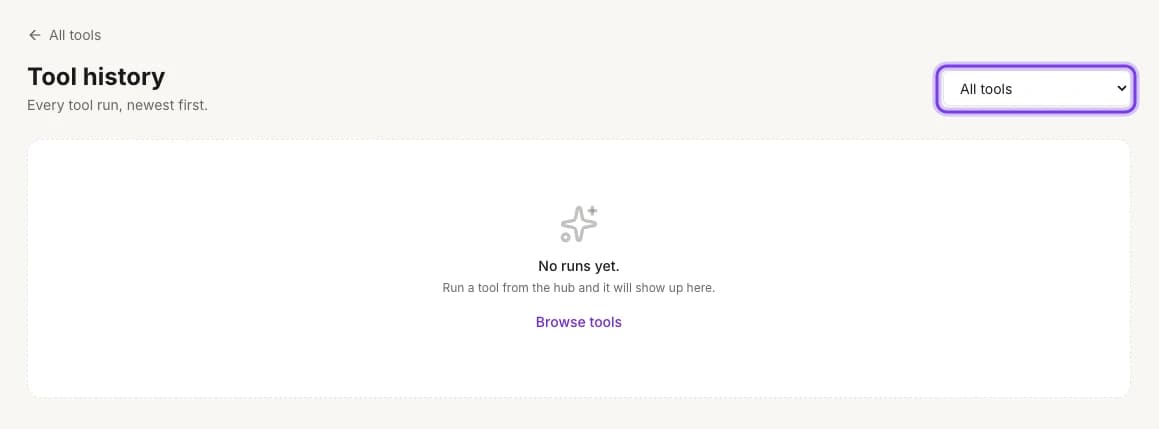
Your videos are saved in Tool history, newest first, with your other AI tool runs. To open it, select Your videos at the top right of the AI Image to Video page. To see only videos, choose AI Image to Video in the filter. Videos are made in 720p.
Credits
A video costs 3 credits for every second. That's a discounted price, 40% off the usual 5 credits per second.
| Length | Credits |
|---|---|
| 3 seconds | 9 |
| 5 seconds | 15 |
| 7 seconds | 21 |
| 10 seconds | 30 |
| 15 seconds | 45 |
| 20 seconds | 60 |
| 25 seconds | 75 |
| 30 seconds | 90 |
Discounts can change, so check the price in the app before you generate. Each option in Length shows its credits, and the total appears above Generate video. See How credits work and Compare plans.
Tips
- Add extra angles when the back or side of the garment matters.
- For photos without a model, like a ghost mannequin shot or a flat lay, try Product spin. It's made for product-only photos.
- Garments with drape and movement, like sarees, lehengas, dupattas and flowing dresses, tend to look strongest in motion. For structured pieces, try calmer templates like Slow orbit, Detail reveal or Seamless loop.
- If the background of your photo is cluttered, clean it up first with AI Background Remover, or put the photo in a new scene with AI Background Changer.
- Not quite right? Add a note in Anything to change? and generate again.
Frequently asked questions
No. Photos with or without a model both work. Product spin is made for photos without a model.
No. The video is made in the background, so you can leave the page. When it's ready, you'll find it in Your videos.
Only if you switch on Ambient audio under More options. It adds natural sound to complement the scene. Videos where the model talks to the camera (the UGC Styling Tip) are made inside a project. See Videos from a photoshoot.
720p. The summary above Generate video shows it, together with the length and format you picked.
AI Image to Video works with any photo you upload, and it's the only place with Format, extra angles, Anything to change? and Ambient audio. Create Video in a project brings a photo you already made in an ApparelAI photoshoot to life with a template and a length, and it's where the UGC Styling Tip is.
Related
Motion templates
All 20 templates, and which to use for each channel.
Videos from a photoshoot
Make videos inside a project, including the UGC Styling Tip.
Make ghost mannequin shots
Create product-only shots to turn into a Product spin video.
How credits work
What costs credits and how to check your balance.
Color variant
Show every colorway without a reshoot: recolor catalog photos with a new fabric photo, keeping the same model, pose and framing, for one or many photos.
Motion templates
All 20 fashion video motion templates, from Fit check to Cinemagraph, plus the format, length and template to use for Amazon, Shopify, Reels, TikTok and ads.