
Change the background
Swap the background of a fashion or product photo for any scene: describe the new background or upload a reference photo, and keep the product as it is.
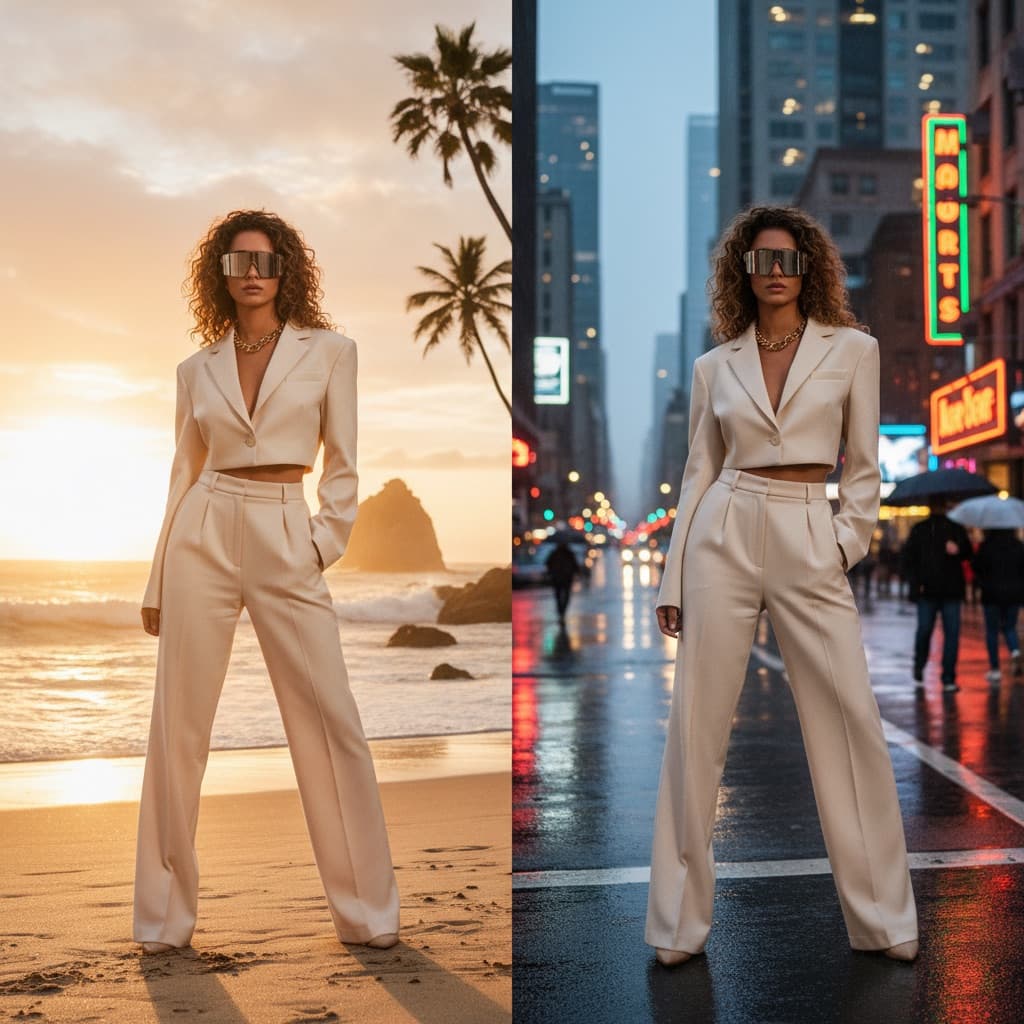
AI Background Changer replaces the background of a product or model photo with a new scene. Describe the scene in words or upload a photo of the backdrop you want. The lighting direction, shadows and color temperature are matched to the new scene, so the result looks like one photo.
Use it to:
- Swap scenes for the season, like summer, winter or festive themes
- Test different lifestyle scenes for the same product
- Match your brand's backdrops without a new photoshoot
Two ways to set the scene
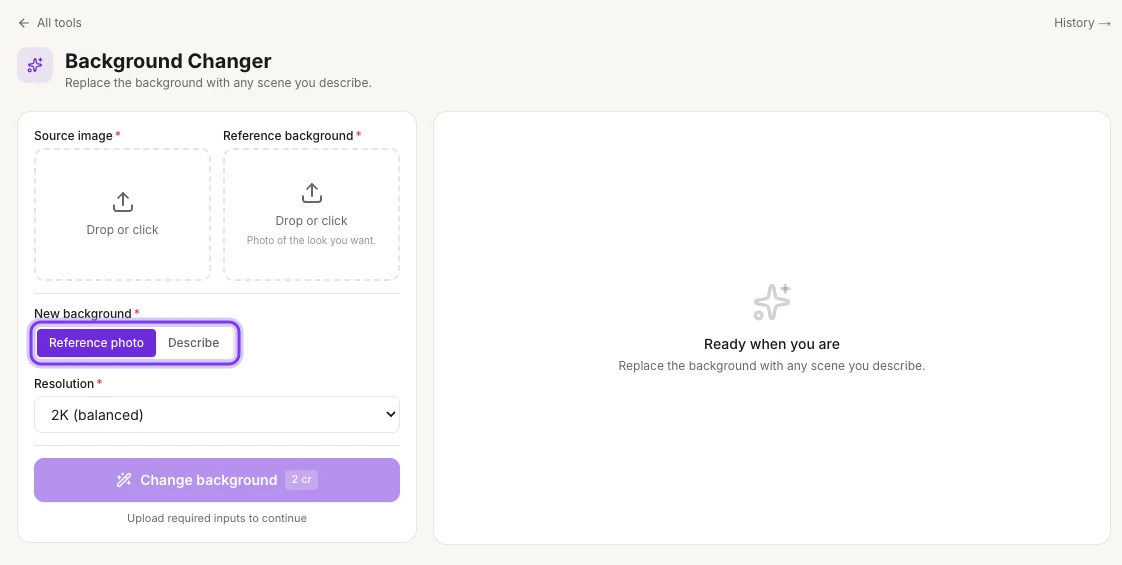
Under New background, choose how you'll show the new scene. Reference photo is selected at first.
| Option | What you give it |
|---|---|
| Reference photo | A photo of the backdrop you want, uploaded under Reference background, like your brand's shoot location or a stock backdrop |
| Describe | A short description of the scene, typed under Description, like "minimalist white studio with soft shadows", "Mediterranean villa balcony, golden hour" or "Tokyo neon street, blue hour" |
Replace a background with a new scene
Open AI Background Changer
On the web, select AI Tools in the sidebar, then Background Changer under IMAGE TOOLS.
The highlighted switch under New background chooses between Reference photo and Describe.
Upload your photo
Upload the product or model photo under Source image.
Set the new scene
Under New background, choose Reference photo and upload the backdrop under Reference background. Or choose Describe and type the scene under Description.
Choose the resolution
Under Resolution, pick 1K (fastest), 2K (balanced) or 4K (premium). 2K (balanced) is selected at first.
Change the background
Select Change background. The button shows the cost, 2 cr at 2K, and becomes available once you've filled in the required fields.
Find your photo
Every run is saved in Tool history. To open it, select History → at the top right of the page.
Credits
AI Background Changer costs 2 credits at 2K (balanced), the resolution that's selected at first. The Change background button shows the cost before you start.
Tips
- Keep backdrops consistent across your catalog. Upload the same reference photo, or reuse the same description, whenever you need that backdrop again.
- Want a transparent background instead? Use AI Background Remover. It gives you a transparent PNG.
- Setting up a new photoshoot? You can pick the background during the shoot, in the Background step: choose a preset, upload your own background or describe one. See Choose a background.
Related
Remove a background
Remove the background from clothing, product and model photos and get a clean cutout on a transparent background, ready for listings and branded layouts.
Turn a sketch into a garment
Turn a hand-drawn fashion sketch or technical flat into a realistic garment worn by an AI model, so you can review a design before sampling. Add style notes.