
Make color variations
Render the same garment in up to six colors in one run, with the same model, pose and background, to build color stories and listings for every colorway.
AI Color Variation renders the same garment in up to 6 colors in one run. The model, pose, lighting and background stay the same, so the set looks like one shoot. Use it to change the color of clothing in a photo and show every colorway of a style without re-shooting.
If you have a photo of the same garment in the new color, use Color Variant to recolor a photo from your photoshoot instead.
Open AI Color Variation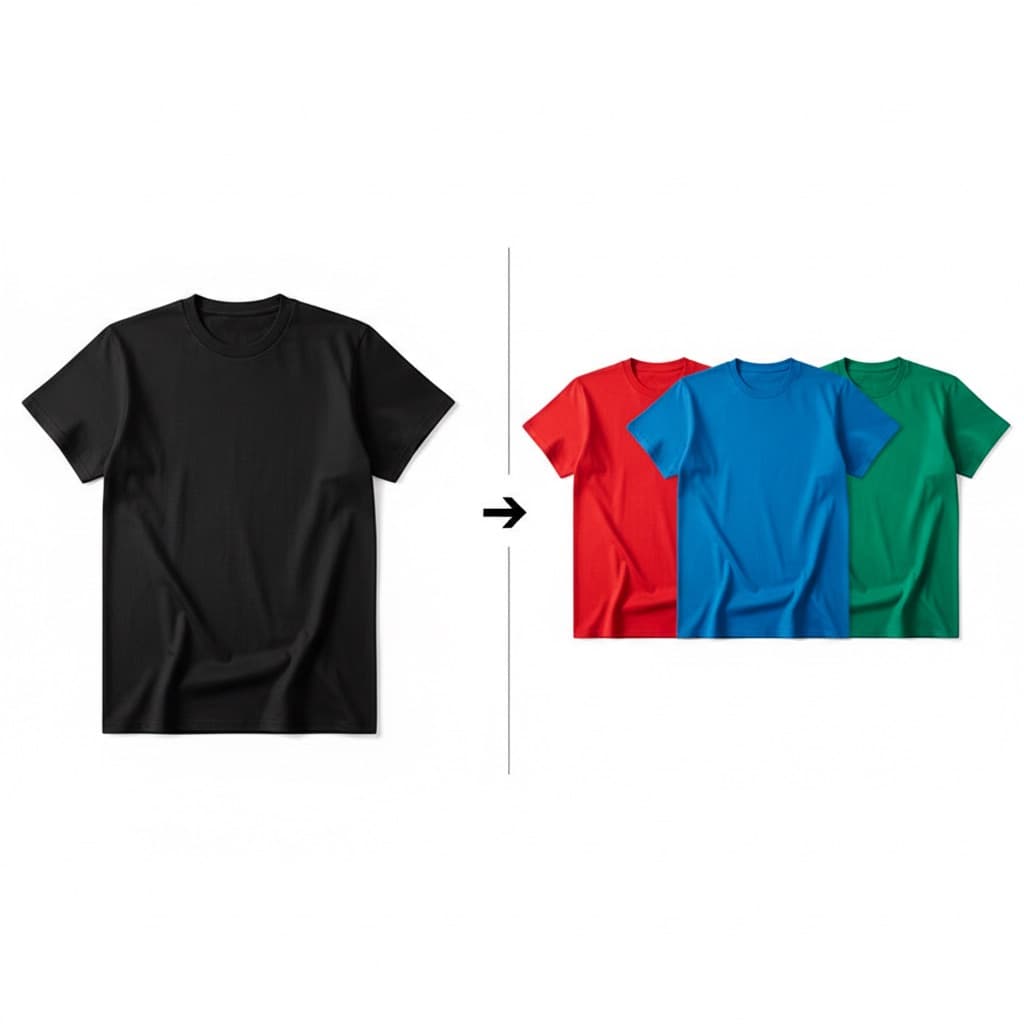
When to use it
- Launching one style in several colorways
- Marketplace listings that show every available color
- Ads that test which color works best
What to upload and choose
- One source photo: a clean photo of the garment in any color, uploaded under Source image. It's the base for every variation.
- Up to 6 target colors: under Target colors, pick each color with the color picker or type its hex code, like #B8232F. Each color becomes one variant.
Make product color variations
Open AI Color Variation
On the web, select AI Tools in the sidebar, then Color Variation under IMAGE TOOLS.
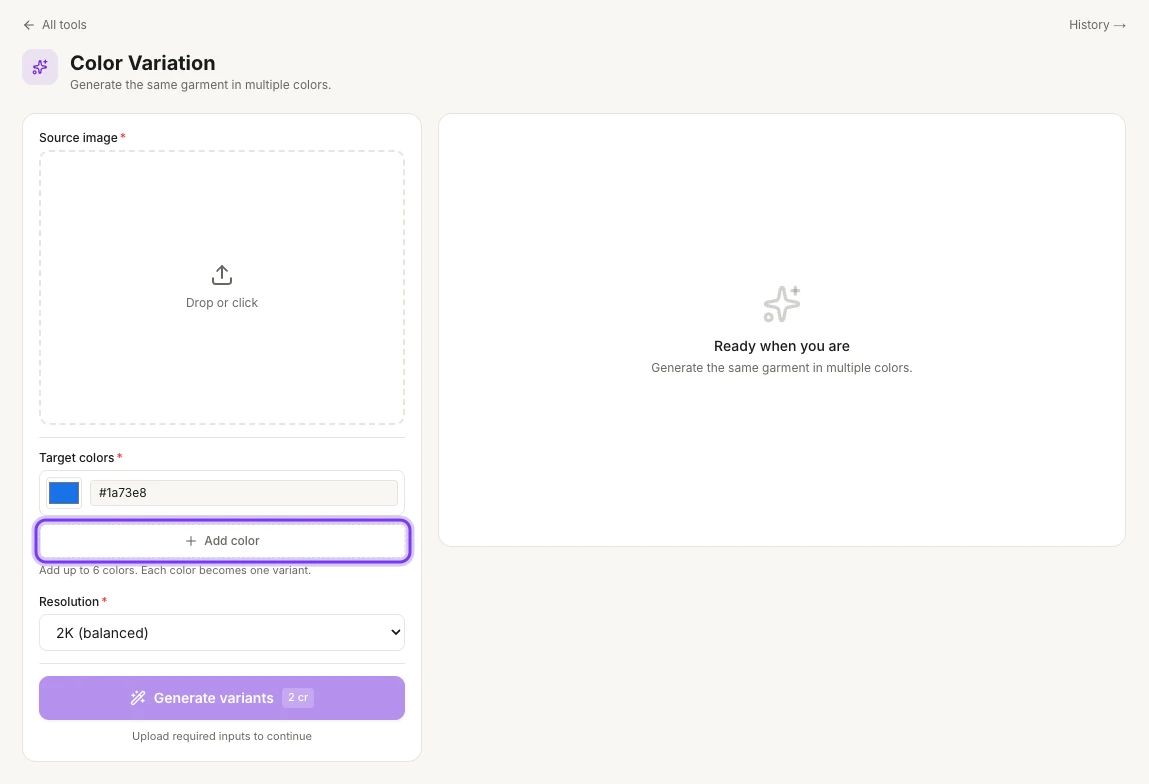
The highlighted Add color button adds another target color, up to 6.
Upload the source photo
Upload one clean photo of the garment under Source image.
Add your colors
Under Target colors, pick a color or type its hex code. The first color starts as a blue (#1a73e8), so change it to the color you want. Select Add color for each extra color, up to 6.
Choose the resolution
Under Resolution, pick 1K (fastest), 2K (balanced) or 4K (premium). 2K (balanced) is selected at first.
Generate the variants
Select Generate variants. The button shows the cost, 2 cr with one color at 2K, and becomes available once you've added a photo.
Find your colors
Every run is saved in Tool history. To open it, select History → at the top right of the page.
What you get
One image per color, with the same model, pose, lighting and background. Patterns like stripes, florals and prints are kept, and so are surface details like embroidery, sequins, lace and texture. Only the base color changes.
Check colors against the real fabric
AI output can vary in color and small details. Compare each image with your actual product before you list it, so shoppers see the color they'll receive.
Credits
AI Color Variation costs 2 credits with one color at 2K (balanced), the resolution that's selected at first. The Generate variants button shows the cost before you start.
Color Variation or Color Variant?
ApparelAI has two ways to recolor a garment. AI Color Variation is the tool on this page. Color Variant is a product shot on the Photo Shoot Result page. It recolors a photo from your photoshoot, using a photo of the same garment in the new color.
| AI Color Variation | Color Variant | |
|---|---|---|
| Where you find it | AI Tools | PRODUCT SHOTS on the Photo Shoot Result page |
| What you give it | One garment photo and up to 6 target colors | A photo of the same garment in the new color |
| What you get | The same garment in each color | Your photoshoot photo in the new colorway, with the same framing |
| How many photos | One source photo per run | One or more versions of the photo, chosen under Apply To |
Use AI Color Variation when you have a color in mind, like a hex code. Use Color Variant when you have a photo of the garment in the new color. See Color variant.
Tips
- Use exact brand colors. Enter your brand's hex code for the closest match.
- Start from a sketch. Make a render with AI Sketch to Garment, then run it through Color Variation to build a color story.
Related
Turn a sketch into a garment
Turn a hand-drawn fashion sketch or technical flat into a realistic garment worn by an AI model, so you can review a design before sampling. Add style notes.
Build an outfit photo
Style a dress, or combine a top with an optional bottom, shoes, accessories and a model, into one outfit photo for shop-the-look banners, lookbooks and posts.