
Remove a background
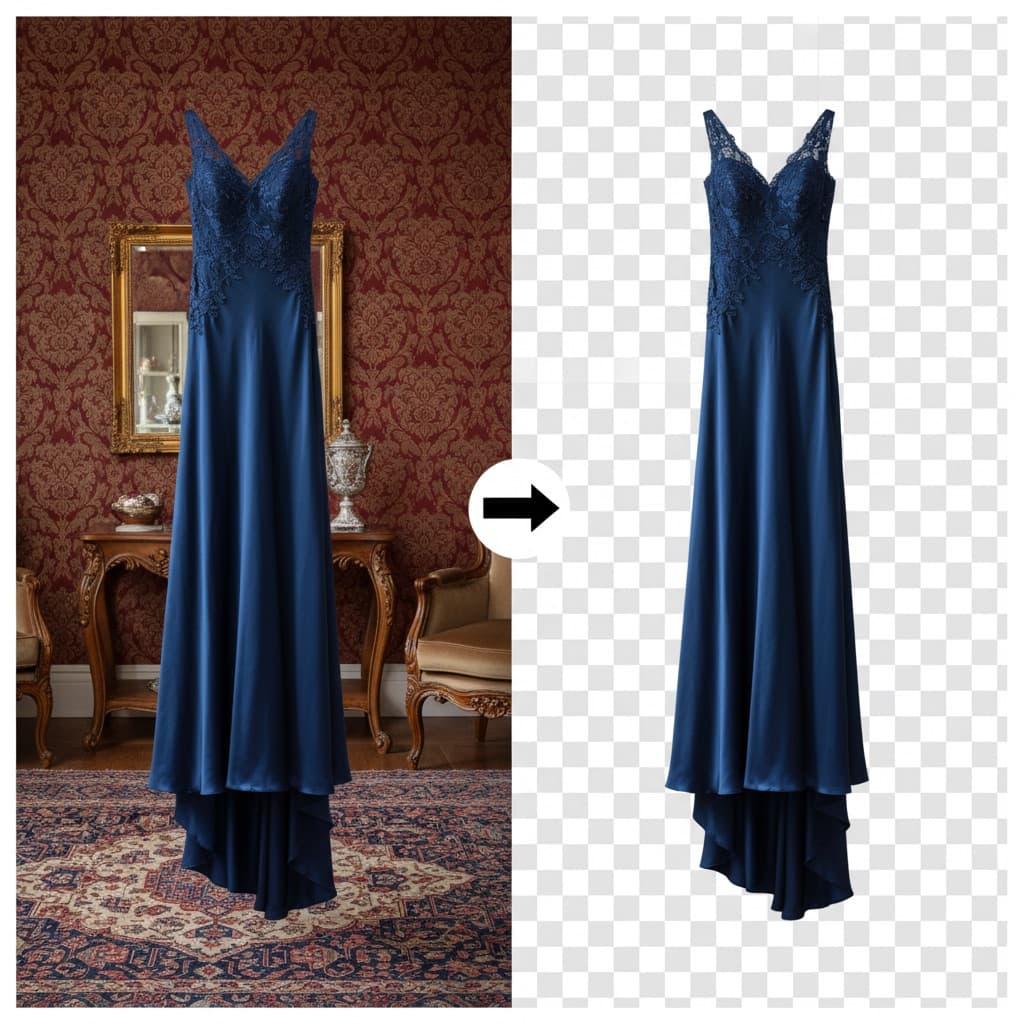
Remove the background from clothing, product and model photos and get a clean cutout on a transparent background, ready for listings and branded layouts.
AI Background Remover removes the background from clothing, product and model photos and gives you a transparent PNG. Use it to prepare product cutouts for a listing or to place model photos in your own layouts.
You can use it in two places:
- Free on the website, with no sign-up: apparelai.app/tools/ai-background-remover. Free use is limited.
- In the app, as one of the AI tools. It costs 1 credit.
Making a photoshoot?
You don't need to remove backgrounds before a photoshoot. ApparelAI cleans up the background of your garment photos for you.
Use the free tool on the website
Open the background remover
Go to the free AI background remover on the ApparelAI website.
Upload your photo
Upload one JPG, PNG, WebP or HEIC/HEIF photo, up to 10 MB and 25 megapixels. Animated images aren't supported. Use a clear photo where the garment stands out from the background.
No photo handy? Choose one of the samples instead.
Remove the background
Select Remove background. You'll complete a security check before the photo is processed. Stay on the page until it's done.
Check the cutout
Drag the comparison slider to compare the before and after. Look closely at fine edges like hair, lace and fringe.
Download the PNG
Download your transparent PNG when it's ready. It's up to 3072 pixels on its longest edge. Smaller photos aren't upscaled, so start with a photo large enough for where you'll use it.
When your free use runs out, sign in to get free credits and keep creating in ApparelAI. See Free plan credits.
Use it in the app
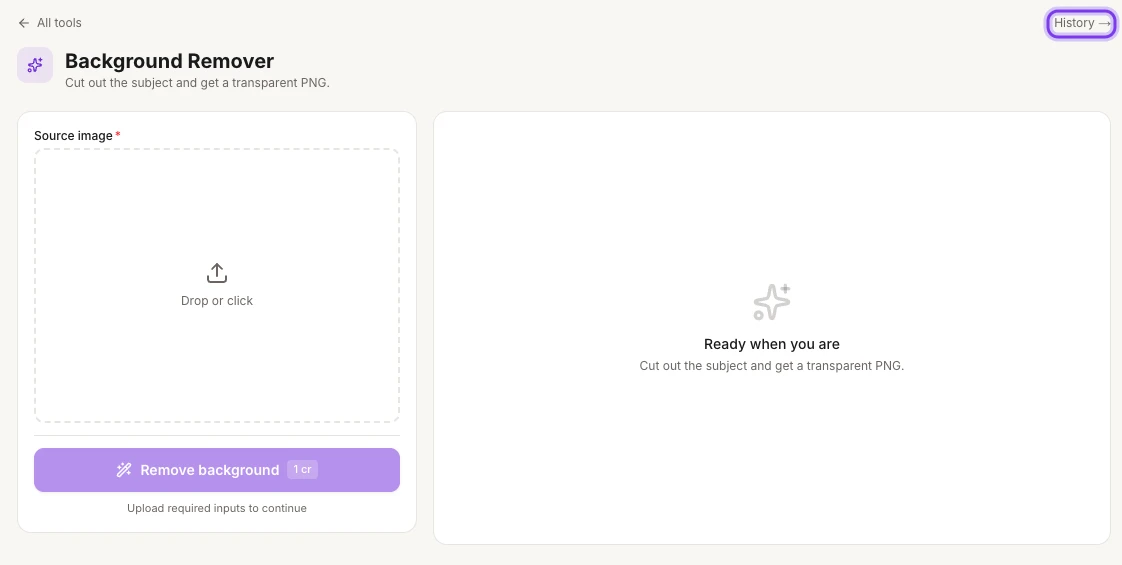
AI Background Remover is also one of the AI tools in ApparelAI Studio. In the app it's called Background Remover. It costs 1 credit per photo, and there are no settings to choose.
Open Background Remover
On the web, select AI Tools in the sidebar, then Background Remover under IMAGE TOOLS.
The highlighted History link at the top right opens your earlier runs.
Upload your photo
Drop your photo on Source image, or click it to choose a file.
Remove the background
Select Remove background. The button shows the cost, 1 cr, and becomes available once you've added a photo.
Find your cutout
Every run is saved in Tool history. To open it, select History → at the top right of the page.
Get cleaner edges
Results depend on your photo, so check delicate areas before you publish.
Lace and sheer fabric
- Start with an evenly lit photo against a contrasting, uncluttered background.
- After removal, check both the outer edge and the openings in the fabric.
- If the fabric turns solid or disappears, try a clearer photo, or touch up the cutout in an image editor.
Fur collars and fine hair
- Use soft, even lighting, and avoid a bright, overexposed rim around the subject.
- Check the collar, shoulders and hair tips with the comparison slider.
- View the downloaded cutout on both a light and a dark background to spot halos, missing strands or leftover background color.
Knitwear, fringe and thin straps
- Spread the garment out so its shape is easy to read, and keep the hems inside the frame.
- Check the spaces between stitches, handles and sleeves, not just the outline.
- The tool can't bring back detail that was blurred, hidden or cut off in the original photo.
Before you list a transparent product photo
The tool removes the background. It doesn't add a white background or crop to a marketplace's required size. Choose the final background and framing in an image editor before you upload.
| Channel | Background to use | Before you publish |
|---|---|---|
| Amazon | Main product images generally need pure white (RGB 255, 255, 255, or #FFFFFF). Place the cutout on white. | Check Amazon's clothing rules for your category, the framing and the image size. |
| Shopify | A transparent PNG works for flexible store layouts. | Preview it against your theme's background, and use consistent crops. |
| Etsy | Use a solid background. Transparent areas show up black on Etsy. | Place the cutout on a background first. Etsy recommends images at least 2,000 px wide and tall. |
Rules change
This guidance was checked on September 17, 2026. Check each marketplace's own image requirements before you upload. Selling on Myntra, Flipkart or Meesho? Check their seller help centers for current image rules.
Transparent PNG or white background?
- A transparent PNG keeps the cutout with nothing behind it, so any color or design can show through. The checkerboard in the preview only shows where it's transparent. It isn't a background you need to remove.
- A white-background image has solid white around the product. Use it where your channel requires one.
- Keep the transparent PNG as your master copy, and save a separate copy on a background for each listing. JPEG files don't keep transparency.
Frequently asked questions
Yes. On the website you can remove backgrounds and download transparent PNGs with limited free use and no sign-up. A security check is required before processing.
Yes. Sign in to get free credits and continue creating with ApparelAI.
Results vary with contrast, lighting and how complex the edges are. A clear, well-lit photo usually gives a cleaner result. Check fine details with the comparison slider before you download.
Not with this tool: it gives you a transparent PNG and doesn't add a white background or crop to a marketplace's size. Where a channel needs white, such as Amazon main images, place the cutout on white in an image editor before you upload.
Use AI Background Changer. It puts your photo in a new scene instead.
Related
Make ghost mannequin shots
Create ghost mannequin product photos with AI: turn a hanger or on-model garment photo into clean invisible-mannequin front, back and side views for listings.
Change the background
Swap the background of a fashion or product photo for any scene: describe the new background or upload a reference photo, and keep the product as it is.