
Change your account settings
Change your ApparelAI settings on the web: pick a photoshoot mode for sarees, dupattas, salwar kameez or shirts, and manage templates, poses and backgrounds.
To open your account settings on the web, click Settings in the sidebar. The Settings page has two parts: the Photoshoot mode choice, and four cards that open more pages: Shoot Templates, Refer & Earn, Custom Poses and Custom Backgrounds. The same four pages are listed under Settings in the sidebar.
Open SettingsPhotoshoot mode
Under Photoshoot mode, pick a specialized mode for the garment you shoot, or keep Standard. Only one specialized mode can be on at a time. The mode changes what you see in Create Photo Shoot: the photo slots in the Product step, the poses in the Pose step and the extra options in the Output step.
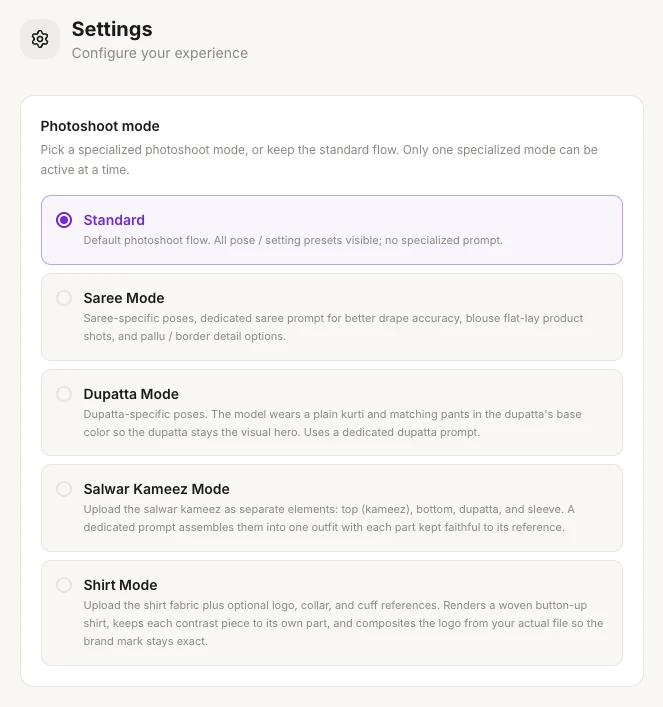
| Mode | Product step | Also changes |
|---|---|---|
| Standard | Upload new product (front side) and Back side (optional) | Nothing else: you see every preset pose and background |
| Saree Mode | Saree Body (required), Blouse and Pallu | Adds saree poses, and Saree Styling (optional) in the Output step |
| Dupatta Mode | The standard upload | Shows only poses made for dupattas, such as Full-body Drape and Veil with Matka. The model wears a plain kurti and pants in the dupatta's base color, so the dupatta stands out |
| Salwar Kameez Mode | Top (Kameez) (required), Bottom, Dupatta and Sleeve | Adds Outfit Styling (optional) in the Output step |
| Shirt Mode | Shirt Fabric (required), Logo, Collar and Cuff | Adds the Three-Quarter Turn pose, and Shirt Options in the Output step |
For what each mode does and how to switch, see Garment modes.
Saree engine
When Saree Mode is selected, a Saree engine choice appears under it. You can switch any time, and the change applies to your next photoshoot.
- Advanced (Beta): the newest option, built for complex designs, with sharper pallu and border detail. Because it's in beta, it can occasionally make mistakes.
- Normal: the original option. Pick it if a design comes out better the classic way.
See Saree mode.
Templates, poses, backgrounds and referrals
Below Photoshoot mode are four cards. Each one opens its own page:
| Card | What it's for | Guide |
|---|---|---|
| Shoot Templates | Your saved photoshoot settings: a model, pose, background and output settings in one template. Apply one on a new shoot to keep your catalog consistent. | Shoot templates |
| Refer & Earn | Your referral link. When people you invite buy credits or a plan, you earn a share of their credits. | Refer and earn |
| Custom Poses | The pose photos you've uploaded, for example with Upload your own pose. They're the first options when you pick a pose. Only the body position is copied. | Poses |
| Custom Backgrounds | The background and scene photos you've uploaded. Your model is placed in that setting, and people in the photo are never copied. | Backgrounds |
Not in Settings on the web
- Phone number: ApparelAI asks for it in a pop-up window, which sometimes offers free credits. See Get free credits.
- Plan and credits: click Billing in the sidebar. See Compare plans and Change or cancel your plan.
- Notifications: when a photoshoot takes a while, your browser may ask whether ApparelAI can notify you. See Notifications.
- Sign out: click your profile photo in the top-right corner, then Sign out. See Create an account and sign in.
Delete your account
There's no delete button in Settings on the web. To delete your account and your data, email support@apparelai.studio and include your account email. After your account is deleted, your account data and uploaded images are deleted within 30 days.
Before you delete your account
Download any photos and videos you want to keep. If you subscribed in the iOS or Android app, cancel the subscription in your iPhone's Settings or the Google Play Store as well.
Related
Use one account on all your devices
Sign in with the same email on the web app, iPhone and Android, and your products, models, photoshoots and credits are there to pick up where you left off.
Notifications
Turn on browser and phone notifications to know the moment your AI photoshoot or bulk shoot is ready, and fix notifications that don't arrive.